Authelia
This guide walks you through setting up Authelia as an OIDC provider for Grimmory. Authelia is a popular self-hosted authentication server that provides SSO and multi-factor authentication for your reverse proxy setup. If you’re already using Authelia to protect your services behind Traefik, Caddy, or nginx, adding Grimmory as an OIDC client is straightforward.
By the end of this guide, your users will be able to sign in to Grimmory with their Authelia account. The setup takes about 5 minutes.
Part 1: Add Grimmory as an OIDC Client in Authelia
Section titled “Part 1: Add Grimmory as an OIDC Client in Authelia”Authelia’s OIDC configuration lives in its YAML config file. Add a client entry for Grimmory under identity_providers.oidc.clients.
Here’s a complete working configuration. Replace grimmory.example.com with your actual Grimmory domain and auth.example.com with your Authelia domain:
identity_providers: oidc: clients: - client_name: Grimmory client_id: # generate this: https://www.authelia.com/integration/openid-connect/frequently-asked-questions/#how-do-i-generate-a-client-identifier-or-client-secret client_secret: # generate this: https://www.authelia.com/integration/openid-connect/frequently-asked-questions/#how-do-i-generate-a-client-identifier-or-client-secret authorization_policy: two_factor require_pkce: true pkce_challenge_method: S256 scopes: - openid - profile - email - groups - offline_access redirect_uris: - https://your-grimmory-domain.com/oauth2-callbackWhat Each Section Does
Section titled “What Each Section Does”authorization_policy: two_factor requires 2FA. Change to one_factor if you don’t use MFA, or adjust based on your security needs.
scopes must include groups if you want to use Grimmory’s Group Mapping feature. Without it, Authelia won’t include group memberships in the token.
Restart Authelia after saving the config.
Part 2: Configure Grimmory
Section titled “Part 2: Configure Grimmory”Navigate to Settings > OIDC in Grimmory.
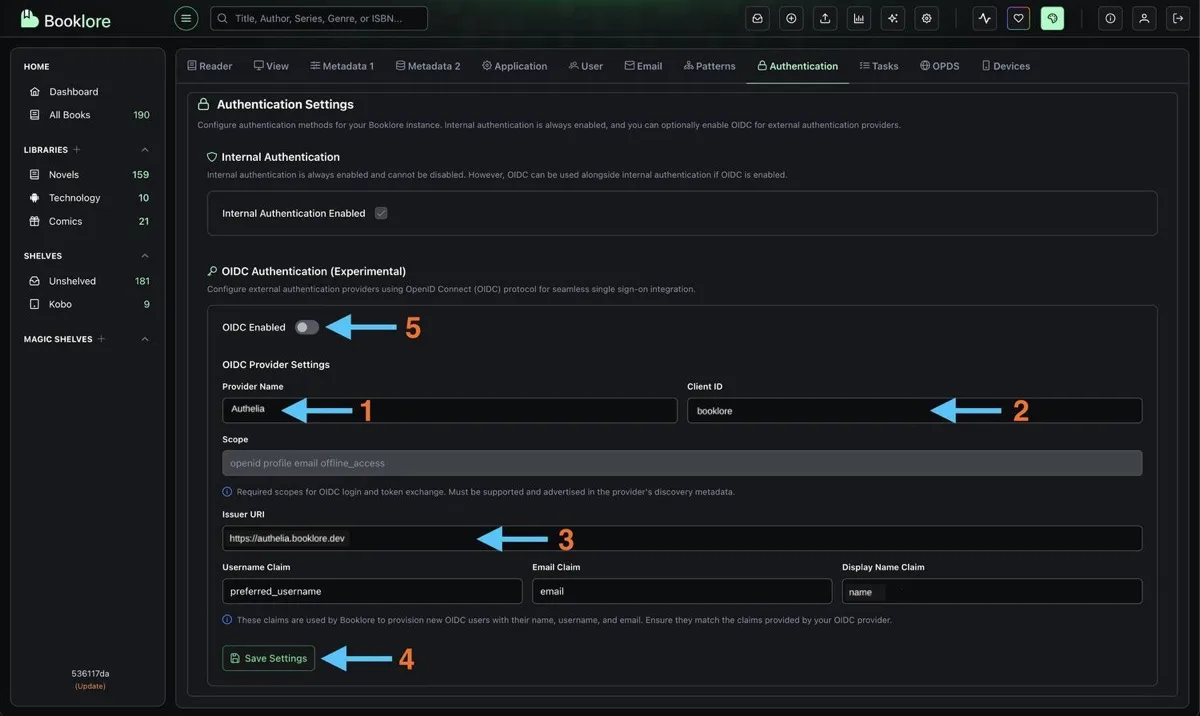
Fill in the provider configuration:
| Field | Value |
|---|---|
| Provider Name | Authelia (shown on the login button) |
| Client ID | Whatever you set as client_id in the Authelia config |
| Client Secret | The client secret you generated and used in the Authelia config |
| Issuer URI | Your Authelia URL without a trailing slash (e.g., https://auth.example.com) |
The default claim mappings work with Authelia:
| Claim | Value |
|---|---|
| Username | preferred_username |
email | |
| Display Name | name |
| Groups | groups |
Click Test Connection to verify Grimmory can reach Authelia. All checks should pass.
Click Save, then toggle OIDC Login to ON in the Login Methods section.
Back-Channel Logout
Section titled “Back-Channel Logout”Authelia does not currently support back-channel logout, so it cannot be used.
Test It
Section titled “Test It”Open an incognito/private browser window and navigate to your Grimmory instance. Click “Sign in with Authelia”. You’ll be redirected to Authelia’s login page.
After authenticating (including 2FA if configured), you should be redirected back to Grimmory and logged in.
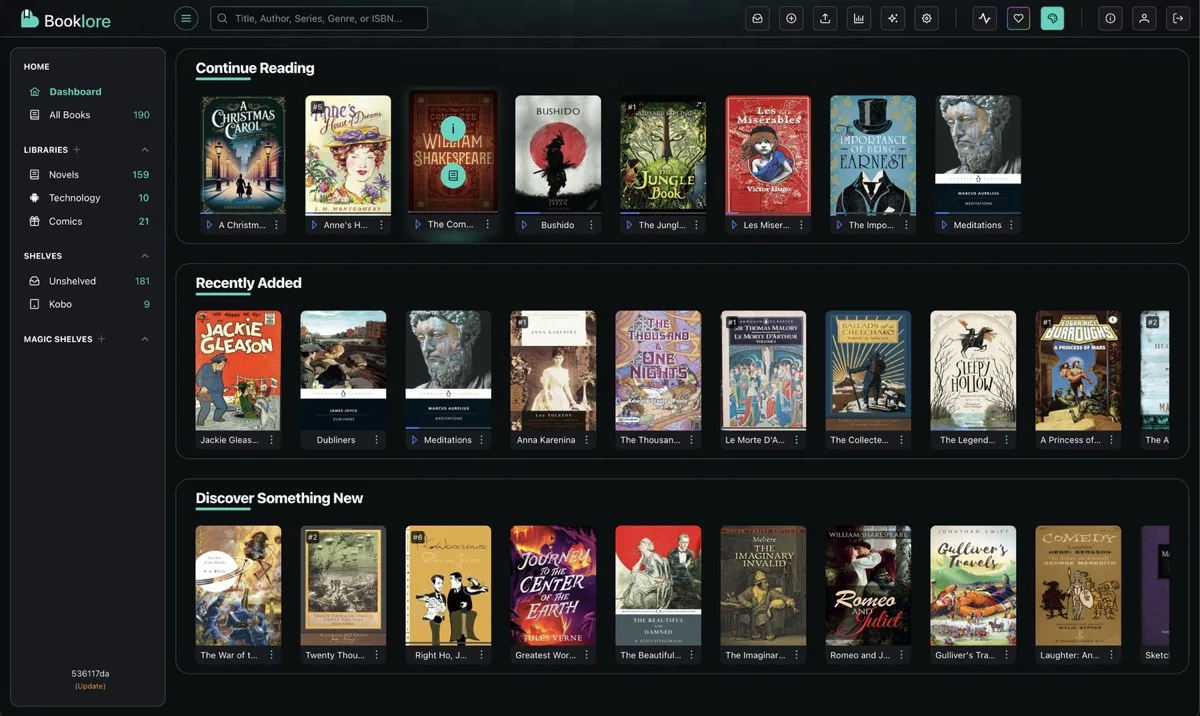
Verify that your username and email are correct.
What’s Next
Section titled “What’s Next”Now that basic OIDC is working, you can configure additional features in Grimmory’s OIDC Settings:
- User Provisioning: Automatically create Grimmory accounts when users sign in for the first time
- Group Mapping: Map Authelia groups to Grimmory permissions and library access (make sure you included
groupsin the scopes and claims policy) - OIDC-Only Mode: Hide the local login form and redirect everyone to Authelia
- Account Linking: Migrate existing local users to OIDC without losing their data
Troubleshooting
Section titled “Troubleshooting”Test Connection Fails
Section titled “Test Connection Fails”- The Issuer URI must not have a trailing slash. Use
https://auth.example.com, nothttps://auth.example.com/. - Make sure Grimmory’s server can reach Authelia. If both run in Docker, they need to be on the same network or the external URL must be reachable.
- Check that Authelia restarted successfully after your config change. A YAML syntax error can prevent the OIDC provider from starting.
Login Redirects But Fails
Section titled “Login Redirects But Fails”- The redirect URI in Authelia’s config must match exactly:
https://your-grimmory-domain.com/oauth2-callback - Check Authelia’s logs for a detailed error message.
”User Not Provisioned” Error
Section titled “”User Not Provisioned” Error”Auto-provisioning is off by default. Either enable it in OIDC Settings, or create a Grimmory user with a username that exactly matches the Authelia username (case-sensitive).
Group Mapping Not Working
Section titled “Group Mapping Not Working”- Make sure
groupsis in thescopeslist in Authelia’s config. - Verify the Groups Claim in Grimmory is set to
groups. - Check that Group Sync Mode in Grimmory is not set to Disabled.
- The group names must match exactly (case-sensitive) between Authelia and Grimmory’s group mappings.
2FA Prompt Every Time
Section titled “2FA Prompt Every Time”This is controlled by Authelia’s authorization_policy. If you set it to two_factor, users authenticate with 2FA. Change to one_factor if you don’t want MFA for Grimmory.
Can’t Access Grimmory At All
Section titled “Can’t Access Grimmory At All”- Admin backdoor:
/login?local=true - Nuclear option: set
FORCE_DISABLE_OIDC=trueas an environment variable and restart