Custom Fonts for EPUB Reader
Upload custom fonts to personalize your reading experience in Grimmory’s EPUB reader. Fonts from Google Fonts or Font Squirrel work well.
Uploading a Font
Section titled “Uploading a Font”-
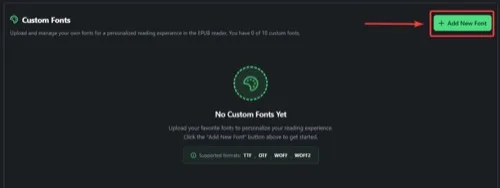
Navigate to Settings > Reader and scroll to the Custom Font Library section
-
Click the Add New Font button
-
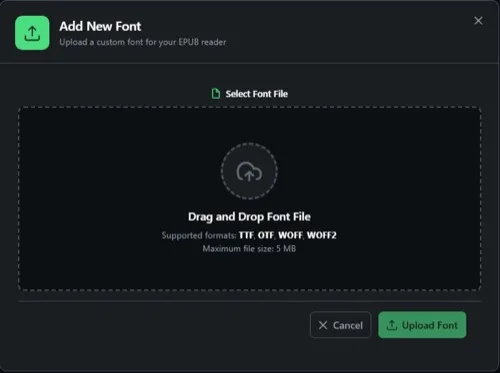
Click the upload area or drag and drop a font file
-
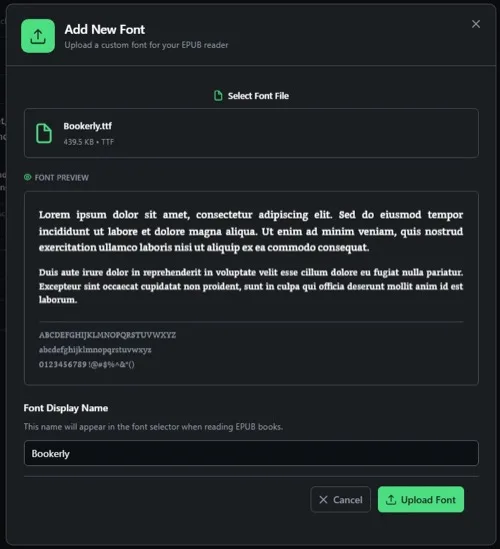
After selecting a file, a preview and name input appear. Enter a display name (or keep the filename).
-
Click Upload Font to save
Supported Formats and Limits
Section titled “Supported Formats and Limits”| Format | Extension |
|---|---|
| TrueType | .ttf |
| OpenType | .otf |
| Web Open Font | .woff |
| Web Open Font 2 | .woff2 |
- Max file size: 5 MB per font
- Max fonts per user: 10
- Storage location:
~/grimmory/data/custom-fonts/
Managing Fonts
Section titled “Managing Fonts”Your font collection is displayed in Settings > Reader > Custom Font Library.
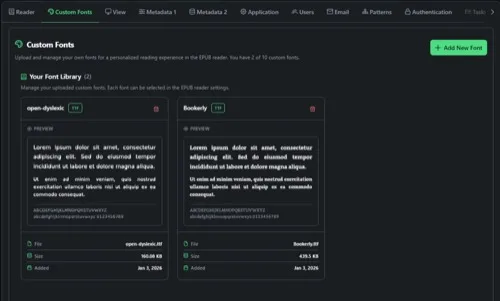
To delete a font, click the trash icon on its card and confirm. If the deleted font was selected in your preferences, it reverts to the default.
Using Custom Fonts
Section titled “Using Custom Fonts”Global Default
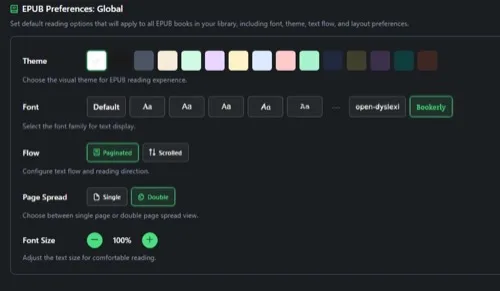
Section titled “Global Default”Set a custom font as the default for all EPUB books in Settings > Reader > eBook Reader: Default Settings > Typography > Font Family.
Per-Book Setting
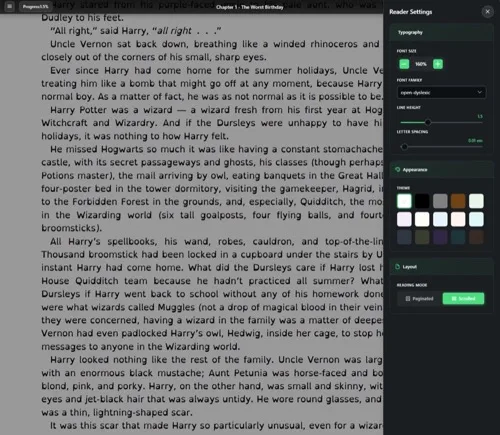
Section titled “Per-Book Setting”While reading an EPUB, open Settings > Typography in the reader header. Custom fonts appear at the bottom of the Font Family dropdown.
Troubleshooting
Section titled “Troubleshooting”| Issue | Solution |
|---|---|
| File size exceeds 5 MB | Convert to WOFF2 format using Transfonter for better compression |
| Font doesn’t appear in reader | Hard refresh the browser (Ctrl+F5 / Cmd+Shift+R), then re-select the font in preferences |
| Font renders incorrectly | Re-download from the original source, or try a different weight/version |