Audit Logs
Audit Logs provide a record of admin-significant actions performed across the system. Every login attempt, library change, user management action, and configuration update is logged with a timestamp, the user who performed it, and the originating IP address.
Audit Logs are available to admin users only and can be found under Settings > Audit Logs.
Activity Log
Section titled “Activity Log”The Activity Log displays all recorded events in reverse chronological order (newest first).
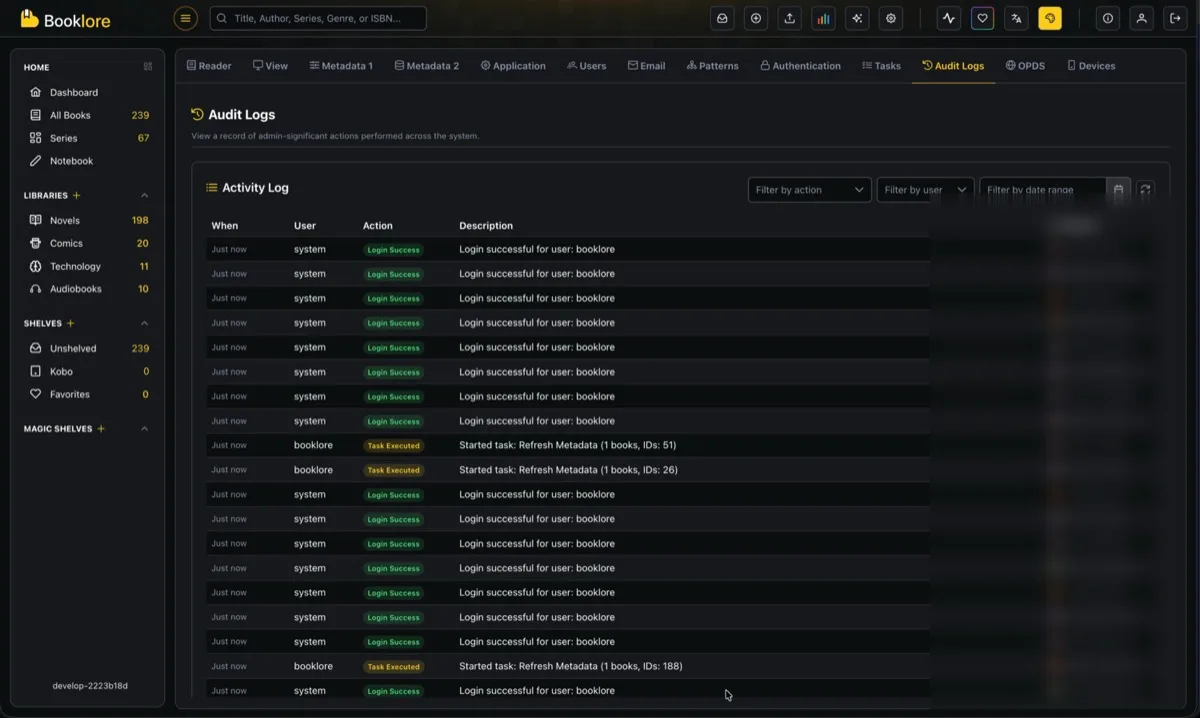
Table Columns
Section titled “Table Columns”| Column | Description |
|---|---|
| When | Relative timestamp (e.g., “Just now”, “5m ago”, “2h ago”, “3d ago”). Hover for the full date and time. |
| User | The user who performed the action. Shows system for automated or internal events like login processing. |
| Action | A color-coded badge indicating the type of action (see action types below). |
| Description | A human-readable summary of what happened. Click to expand long descriptions. |
| IP Address | The IP address of the request, along with a country flag resolved via geolocation. |
Action Types
Section titled “Action Types”Actions are grouped into categories and displayed with color-coded badges.
Green (Created / Success)
Section titled “Green (Created / Success)”| Action | Description |
|---|---|
| Login Success | A user successfully logged in |
| User Created | A new user account was created |
| Library Created | A new library was added |
| Book Uploaded | A book file was uploaded via Bookdrop |
| Book Sent | A book was sent to a device or email |
| Shelf Created | A new shelf was created |
| Magic Shelf Created | A new magic shelf was created |
| Email Provider Created | A new email provider was configured |
| OPDS User Created | A new OPDS user was added |
Blue (Updated / Executed)
Section titled “Blue (Updated / Executed)”| Action | Description |
|---|---|
| User Updated | A user profile was modified |
| Password Changed | A user’s password was changed |
| Library Updated | Library settings were modified |
| Library Scanned | A library scan was triggered |
| Metadata Updated | Book metadata was edited |
| Settings Updated | Application settings were changed |
| Task Executed | A background task was started (e.g., metadata refresh) |
| Shelf Updated | A shelf was modified |
| Magic Shelf Updated | A magic shelf was modified |
| Email Provider Updated | An email provider configuration was changed |
| OPDS User Updated | An OPDS user was modified |
| Naming Pattern Changed | A library’s file naming pattern was updated |
| Duplicate Books Merged | Duplicate books were merged together |
Orange (Security / Permissions)
Section titled “Orange (Security / Permissions)”| Action | Description |
|---|---|
| Permissions Changed | A user’s permissions were modified |
| OIDC Config Changed | OpenID Connect (SSO) configuration was updated |
Red (Failed / Deleted)
Section titled “Red (Failed / Deleted)”| Action | Description |
|---|---|
| Login Failed | A login attempt was unsuccessful |
| User Deleted | A user account was removed |
| Library Deleted | A library was deleted |
| Book Deleted | A book was removed from a library |
| Shelf Deleted | A shelf was removed |
| Magic Shelf Deleted | A magic shelf was removed |
| Email Provider Deleted | An email provider was removed |
| OPDS User Deleted | An OPDS user was removed |
Filtering
Section titled “Filtering”Three filters are available in the toolbar to narrow down the log.
Filter by Action
Section titled “Filter by Action”Select a specific action type from the dropdown to show only matching entries (e.g., only “Login Failed” events).
Filter by User
Section titled “Filter by User”Select a username from the dropdown to see only actions performed by that user. The list is populated from all usernames that appear in the logs.
Filter by Date Range
Section titled “Filter by Date Range”Pick a start and end date to view logs from a specific time period.
Auto-Refresh
Section titled “Auto-Refresh”Click the refresh icon in the toolbar to enable auto-refresh. When active, the log automatically reloads every 10 seconds, making it useful for monitoring live activity. The icon spins while auto-refresh is enabled. Click it again to disable.
IP Geolocation
Section titled “IP Geolocation”Each log entry includes the originating IP address along with a country flag. The country is resolved automatically using IP geolocation. Private or local IP addresses (127.x.x.x, 192.168.x.x, etc.) do not display a country flag.
- Audit Logs are only accessible to admin users.
- Logs are stored indefinitely with no automatic cleanup.
- Descriptions longer than 1024 characters are truncated.
- The log table supports pagination with page sizes of 10, 25, or 50 entries.
- Automated system actions (like login processing) are logged with the username system.
- Audit logging is designed to be non-blocking. If logging fails for any reason, it does not affect the operation that triggered it.