Global Preferences
Configure global settings for your Grimmory instance, including cover image handling, search preferences, and file upload limits. These settings apply to all users on the server.
Navigate to Settings > Application to access this page. Requires the Manage Application Preferences permission.
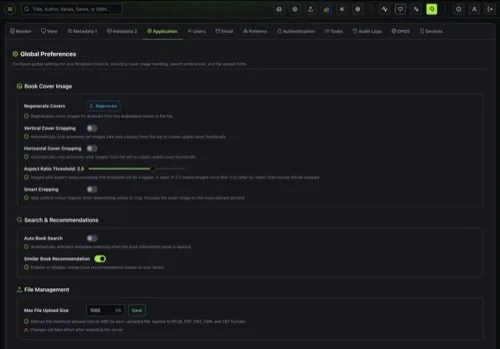
Book Cover Image
Section titled “Book Cover Image”Controls how Grimmory generates and processes book cover thumbnails.
Regenerate Covers
Section titled “Regenerate Covers”Click Regenerate to re-extract cover images for all books from the embedded covers in their files. This runs as a background task with progress tracking. Books with locked covers are skipped.
Cover Cropping
Section titled “Cover Cropping”Some book files contain covers that are extremely tall (like web comics or manga scans) or extremely wide (like panoramic images). These don’t display well as thumbnails. Cover cropping automatically trims these images to a standard portrait ratio (approximately 2:3).
| Setting | Default | Description |
|---|---|---|
| Vertical Cover Cropping | Off | Crops extremely tall images from the top to create usable thumbnails. Useful for web comics and vertically-scrolling manga. |
| Horizontal Cover Cropping | Off | Crops extremely wide images from the left to create usable thumbnails. |
| Aspect Ratio Threshold | 2.5 | Controls when cropping kicks in. Only images with an aspect ratio exceeding this value are cropped. A value of 2.5 means images more than 2.5x taller (or wider) than normal will be cropped. Range: 1.5 to 3.0. |
| Smart Cropping | Off | When enabled, the cropping algorithm skips uniform color regions (borders, margins) and focuses on the most relevant content. Without smart cropping, images are simply trimmed from the top or left edge. |
How cropping works:
- When a cover is generated, Grimmory checks if its aspect ratio exceeds the threshold
- If vertical cropping is enabled and the image is too tall, it’s cropped to a standard portrait ratio
- If horizontal cropping is enabled and the image is too wide, it’s cropped similarly
- With smart cropping on, the algorithm scans from the edges to find where actual content begins (skipping blank or solid-color borders) and crops from there
Search & Recommendations
Section titled “Search & Recommendations”| Setting | Default | Description |
|---|---|---|
| Auto Book Search | On | Automatically attempts to find metadata matches when you open the book information panel. Disable this if you prefer to trigger metadata searches manually. |
| Similar Book Recommendation | On | Enables the “Similar Books” feature that recommends books from your library based on content similarity. Recommendations are generated by the Update Book Recommendations task. |
File Management
Section titled “File Management”| Setting | Default | Description |
|---|---|---|
| Max File Upload Size | 1000 MB | The maximum allowed file size (in MB) for each uploaded file. Applies to EPUB, PDF, CBZ, CBR, and CB7 formats uploaded through Bookdrop. |
Enter a new value and click Save to update.
- All settings changes are recorded in the Audit Log.
- Cover cropping settings apply globally. After changing them, use Regenerate Covers to apply the new settings to existing books. New books will use the updated settings automatically.
- The aspect ratio threshold slider moves in increments of 0.1. Lower values crop more aggressively; higher values are more lenient.
- Disabling Similar Book Recommendation hides the recommendation section in the book detail view but does not delete the computed recommendations.