Table View
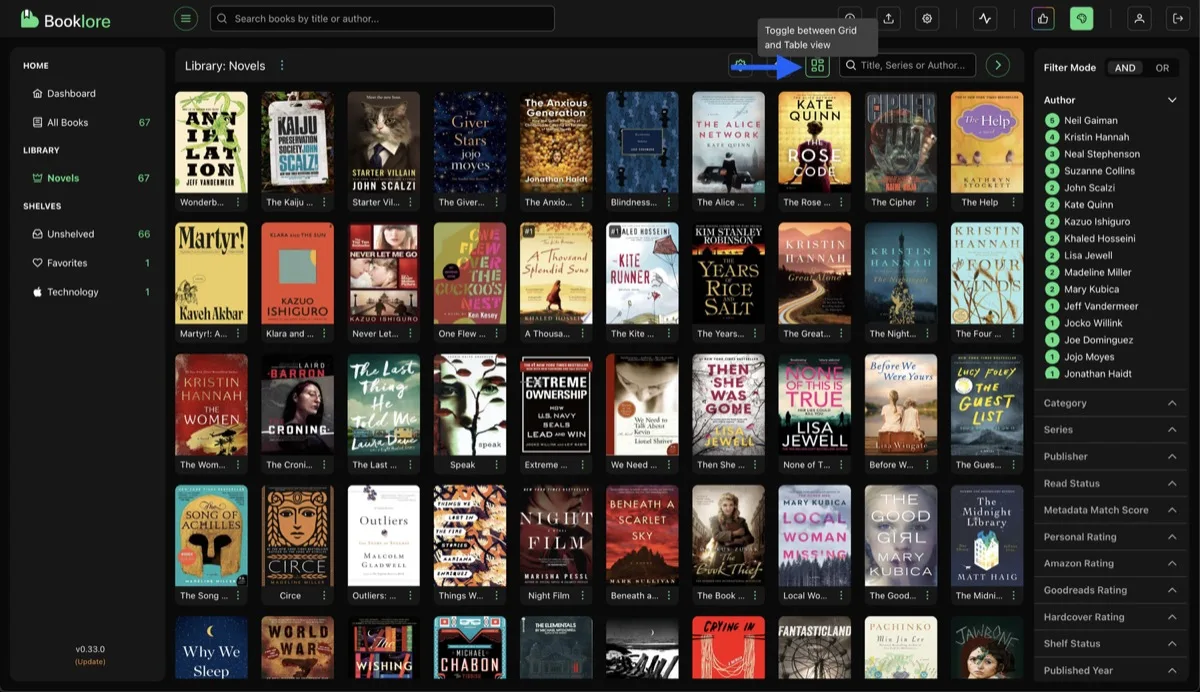
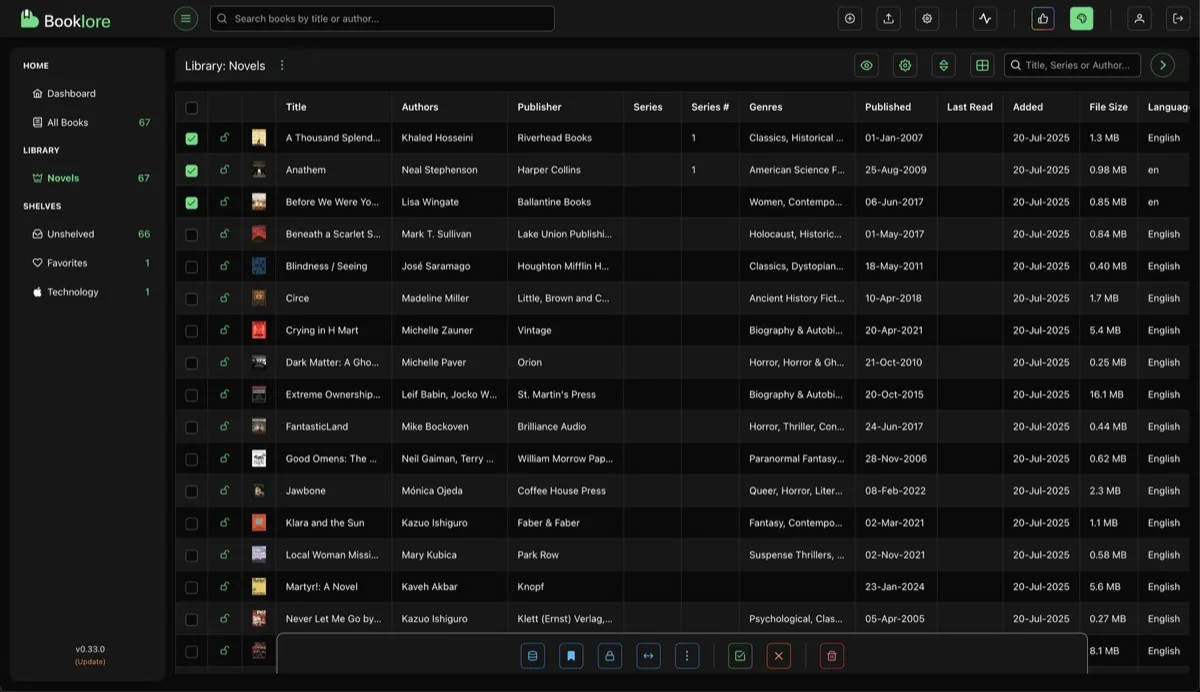
The table view displays books in a data-rich tabular layout with sortable columns, ideal for managing large libraries. Switch to table view using the toggle button in the toolbar.
Visible Columns
Section titled “Visible Columns”Click the eye icon in the toolbar to choose which columns to show or hide.
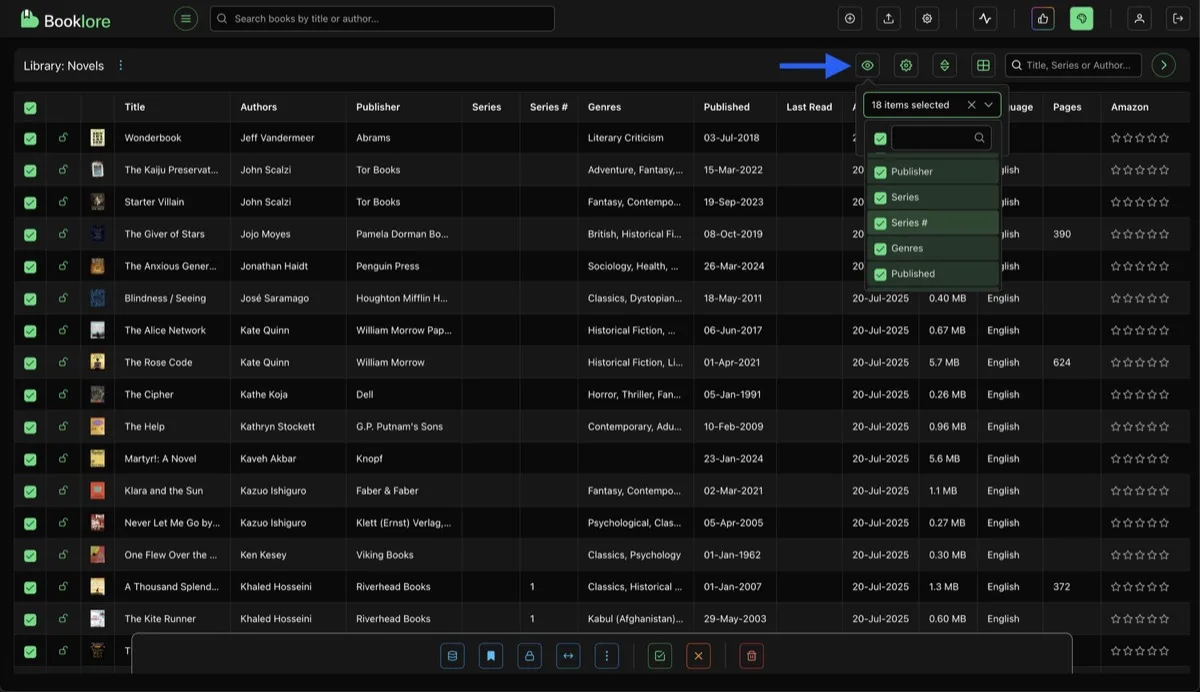
Available columns: Title, Authors, Publisher, Series, Series #, Genres, Published, Last Read, Added On, File Size, Language, ISBN, Pages, Read Status, Amazon Rating, Goodreads Rating, Hardcover Rating, and their review counts.
Sorting
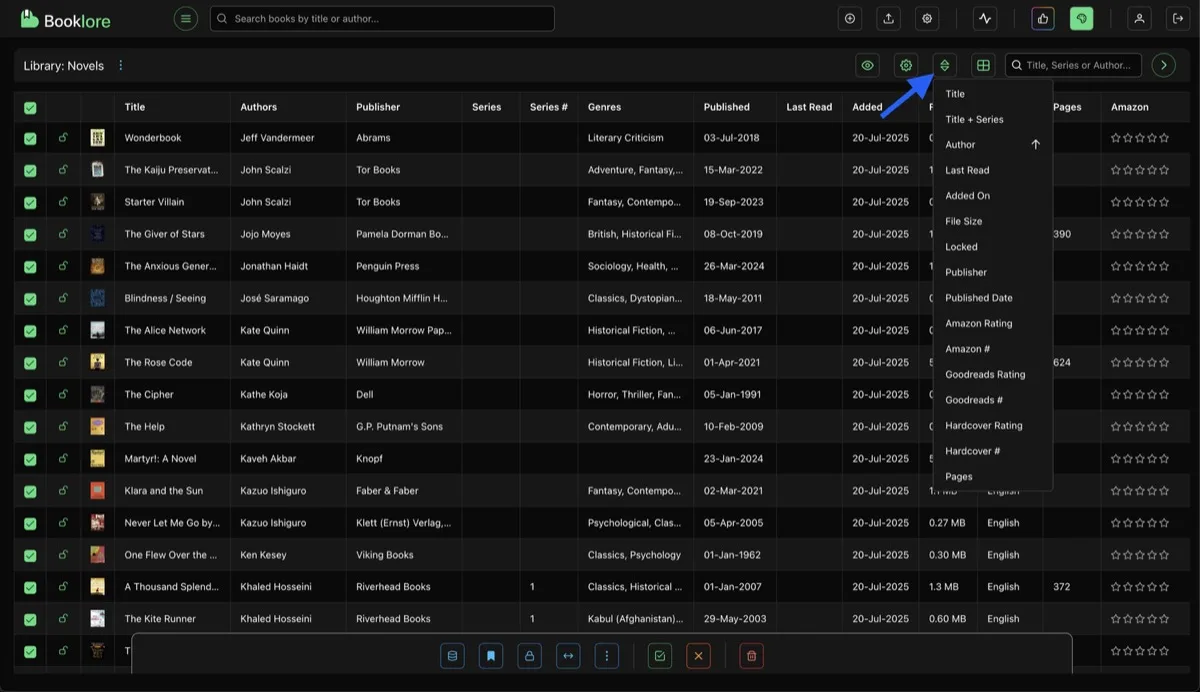
Section titled “Sorting”Click the sort icon in the toolbar to open the sort popover. Works the same as in grid view: multi-sort with drag-to-reorder priority and ascending/descending toggles per field.
Search
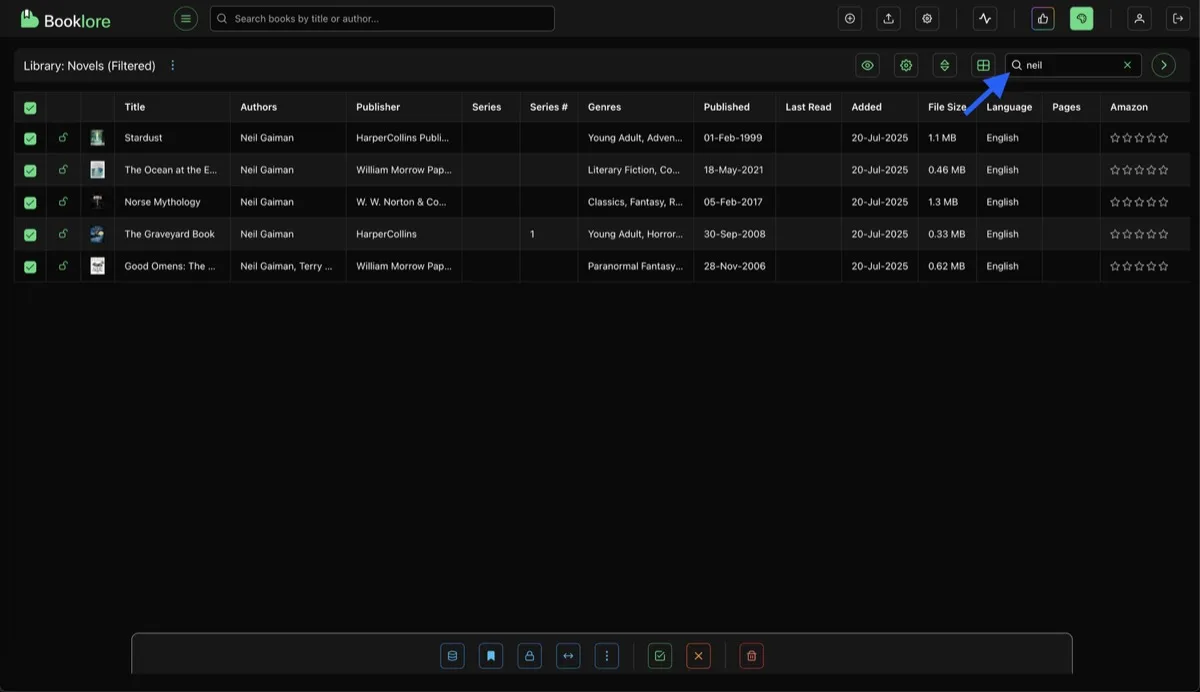
Section titled “Search”The search bar filters the table in real time, matching across title, series, and author fields.
Sidebar Filters
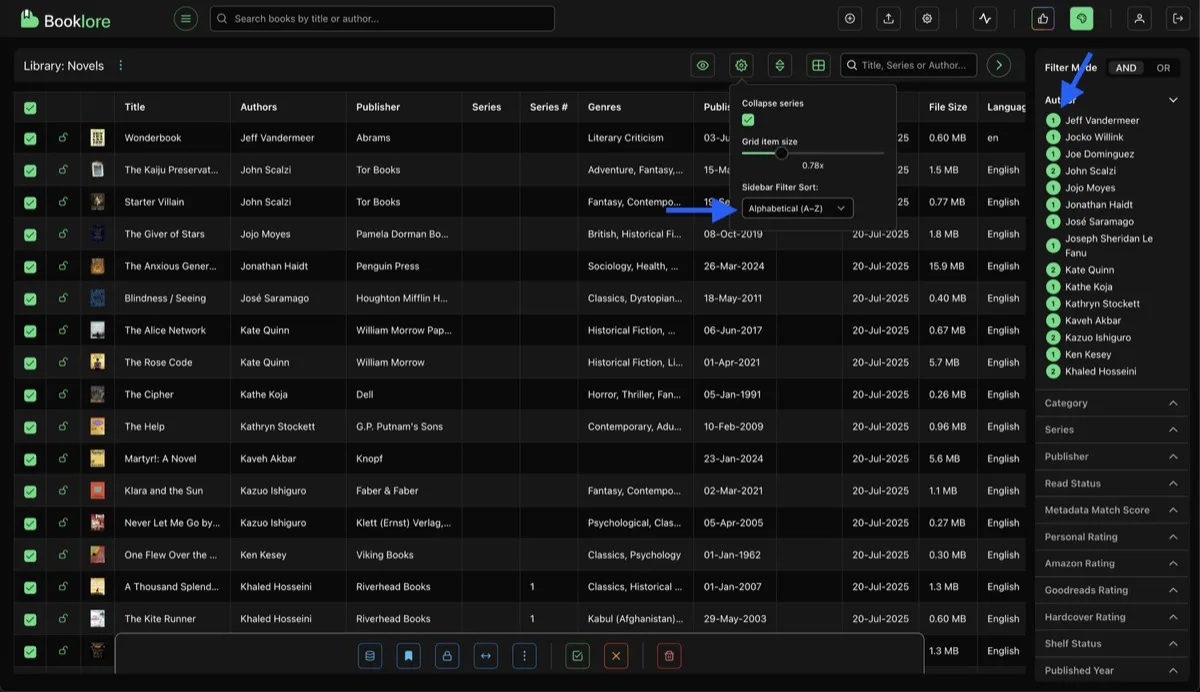
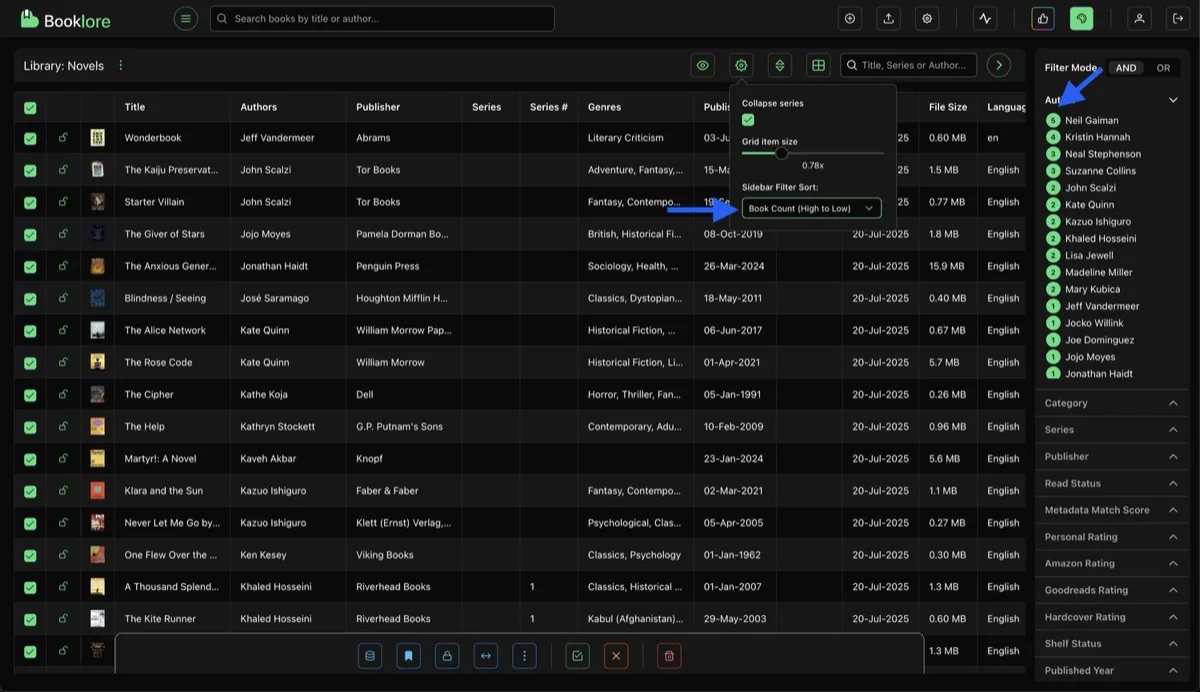
Section titled “Sidebar Filters”The sidebar filter panel works identically to the grid view, with the same filter categories and AND/OR mode toggle.
Bulk Selection
Section titled “Bulk Selection”Check the checkbox next to books to select them, or use Select All in the bottom action bar to select every visible book.
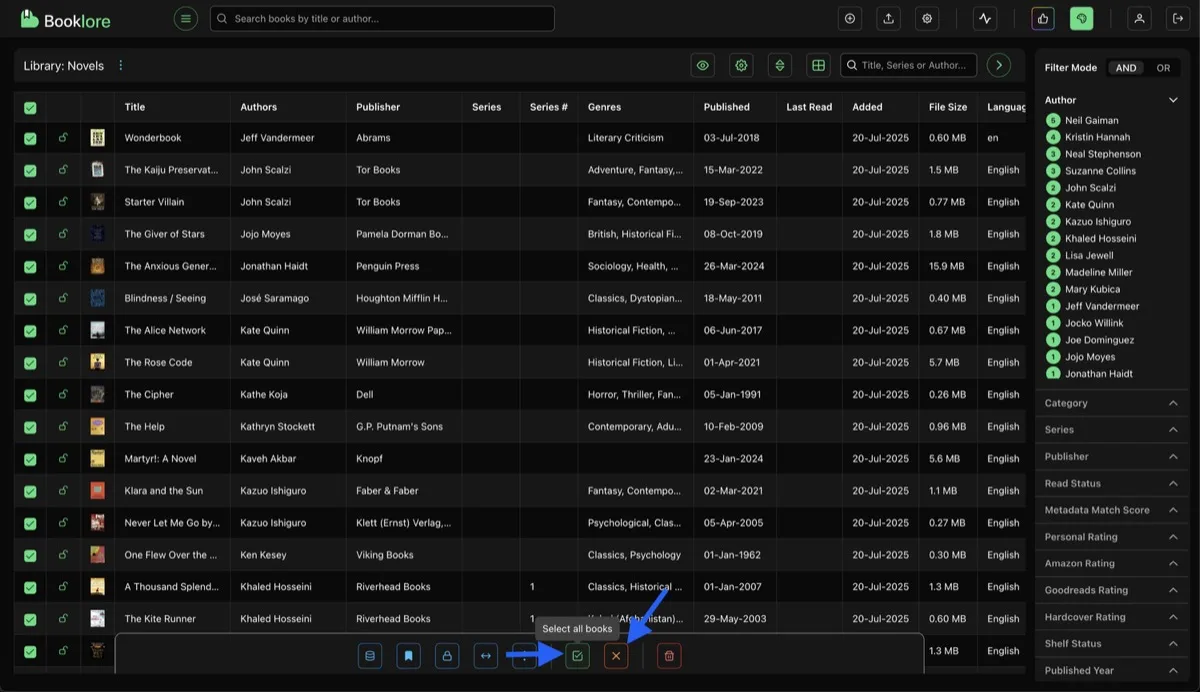
The action bar provides bulk operations: metadata actions, shelf assignment, lock/unlock, organize files, and more (based on your permissions).
Delete Books
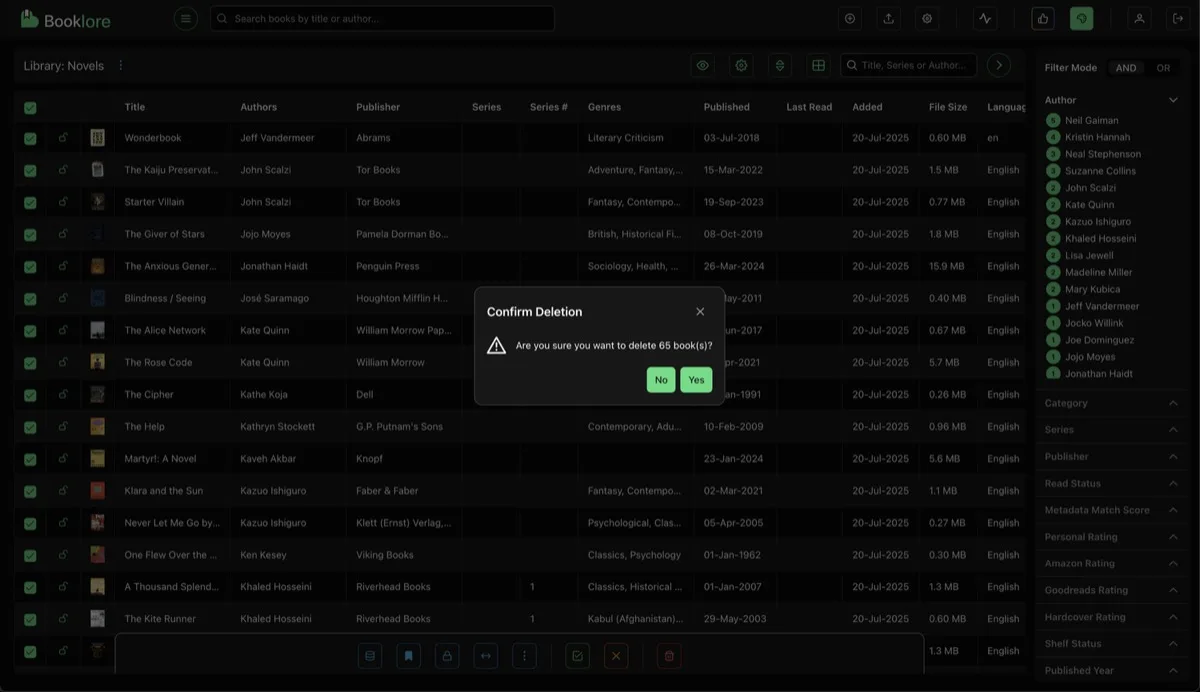
Section titled “Delete Books”Click the delete button in the bottom action bar to delete selected books. This permanently removes the files from disk, not just from the library.
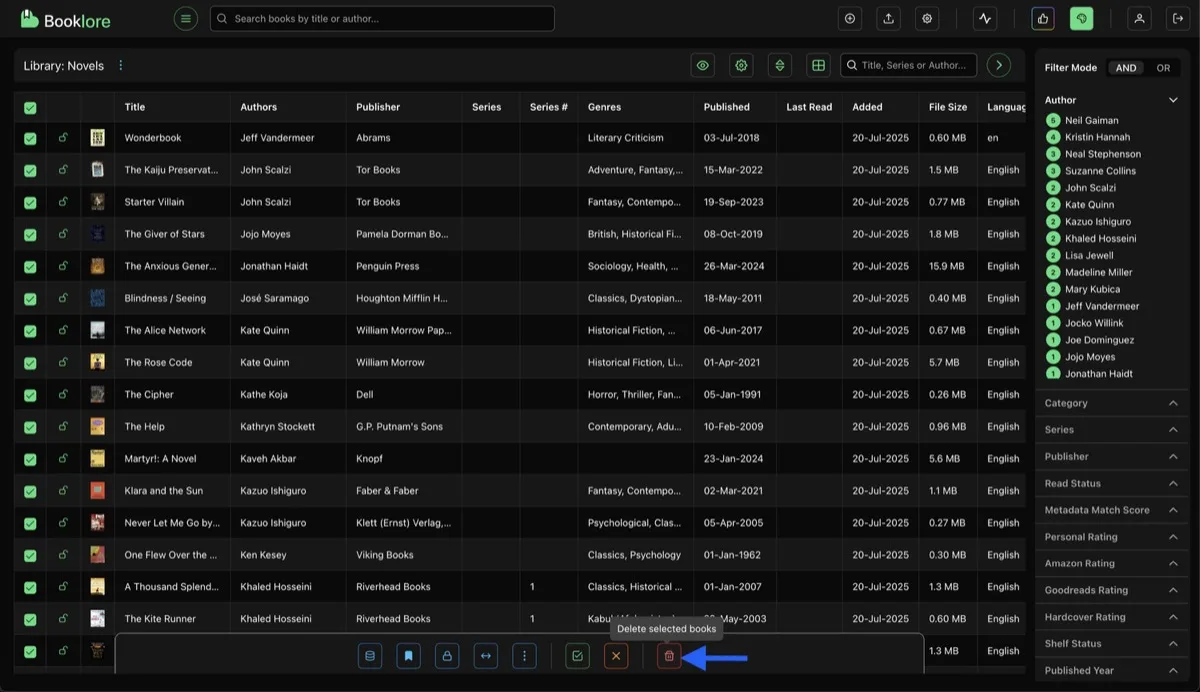
A confirmation dialog shows how many books will be deleted.