Custom SVG Icons
Grimmory lets you upload custom SVG icons to use with libraries, shelves, and magic shelves. The icon picker gives you access to a built-in PrimeNG icon set, your uploaded SVG collection, and a form to add new icons by pasting SVG code. Icons from Lucide, Iconoir, Heroicons, or Feather Icons work well.
Opening the Icon Picker
Section titled “Opening the Icon Picker”The icon picker appears whenever you’re creating or editing a library, shelf, or magic shelf. Click the Choose an Icon button in the icon field to open it.
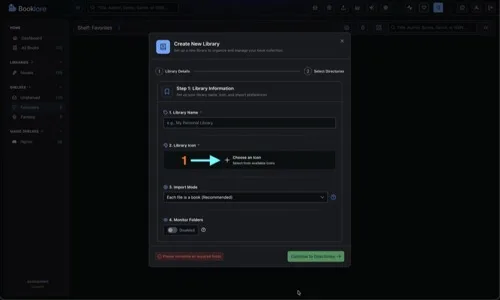
This opens a modal with three tabs: Prime Icons, SVG Icons, and Add SVG Icon.
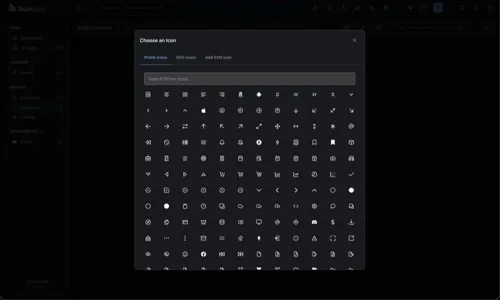
Prime Icons
Section titled “Prime Icons”The first tab shows the built-in PrimeNG icon library. Use the search bar at the top to filter by name, then click any icon to select it.
SVG Icons
Section titled “SVG Icons”The second tab shows your uploaded custom SVG icons. If you’ve added icons through the Add SVG Icon tab, they appear here as a searchable grid.
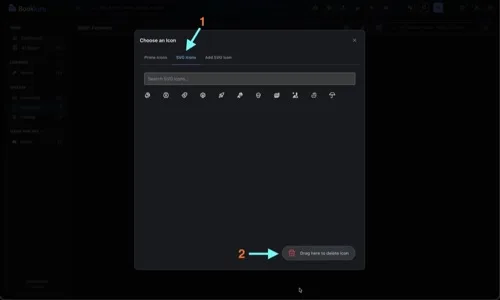
Click any icon to select it. Use the search bar to filter by name.
To delete an icon, drag it to the “Drag here to delete icon” zone at the bottom-right. The zone highlights when you hover over it. Drop the icon to permanently delete it.
Adding a New Icon
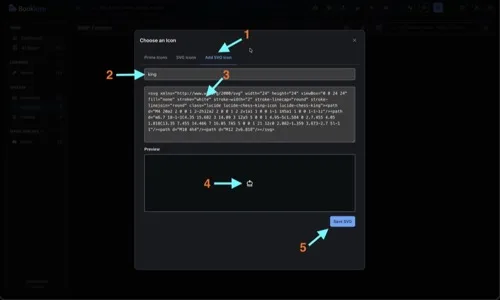
Section titled “Adding a New Icon”Switch to the Add SVG Icon tab to upload a new icon by pasting its SVG code.
-
Name your icon in the text field. Use lowercase with hyphens or underscores (e.g.,
chess-king). Only letters, numbers, hyphens, and underscores are allowed, up to 255 characters. -
Paste the SVG code into the textarea. Copy the full
<svg>...</svg>markup from your icon source.<svg xmlns="http://www.w3.org/2000/svg" width="24" height="24"viewBox="0 0 24 24" fill="none" stroke="white"stroke-width="2" stroke-linecap="round" stroke-linejoin="round"><path d="M4 20a2 2 0 0 1 2-2h12a2 2 0 0 1 2 2v1a1 1 0 0 1-1 1H5a1 1 0 0 1-1-1z"/><path d="m6.7 18-1-1C4.35 15.682 3 14.09 3 12a5 5 0 0 1 ..."/><path d="M10 4h4"/><path d="M12 2v6.818"/></svg> -
Check the preview. It updates automatically as you paste, showing exactly how the icon will look in Grimmory.
-
Click Save SVG. The icon is saved, and you’re automatically switched to the SVG Icons tab with your new icon pre-selected.
Troubleshooting
Section titled “Troubleshooting”| Problem | What to check |
|---|---|
| ”Invalid SVG content” error | Make sure you copied the full code from <svg> to </svg>. Validate your SVG at svgviewer.dev. |
| Icon too large or small | Add a viewBox attribute and remove hardcoded width/height values. |
| Icon invisible or wrong color | Use stroke="white" and fill="none" instead of hardcoded colors. Some icons use fill instead of stroke, so try fill="white" and stroke="none". |