Dashboard
The Dashboard is the first page you see after logging in. It shows a personalized overview of your library through scrollable rows of book covers, each row driven by a different data source. Pick up where you left off, see what just arrived, or let Grimmory surface something unexpected.
Overview
Section titled “Overview”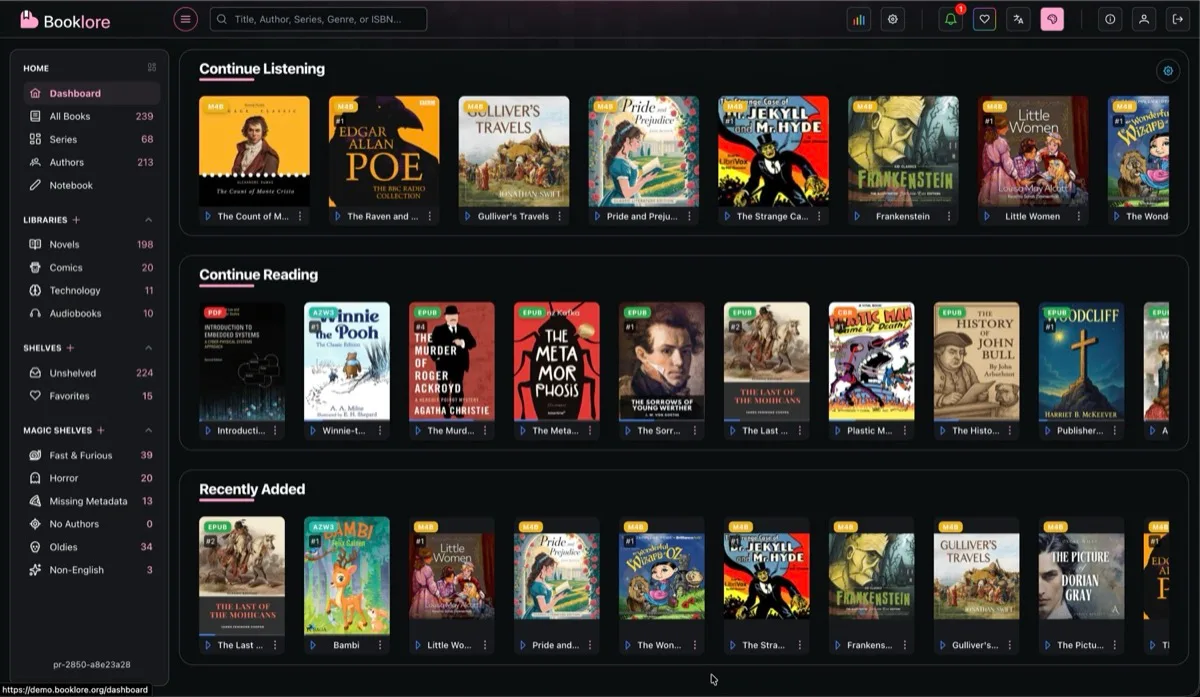
The dashboard is made up of scrollers, horizontal rows of book cards. Each scroller pulls books from a different source and displays up to 20 covers. Click any cover to open the book, or hover to see the title.
By default, four scrollers are shown:
| Scroller | What it shows |
|---|---|
| Continue Listening | Audiobooks you’ve started but haven’t finished, ordered by last listened |
| Continue Reading | Ebooks and PDFs you’ve started but haven’t finished, ordered by last read |
| Recently Added | The newest books added to your libraries |
| Discover Something New | A random selection of books from your collection |
Each scroller only appears if it has books to show. If you haven’t started any audiobooks, for example, the Continue Listening row is hidden automatically.
Dashboard Configuration
Section titled “Dashboard Configuration”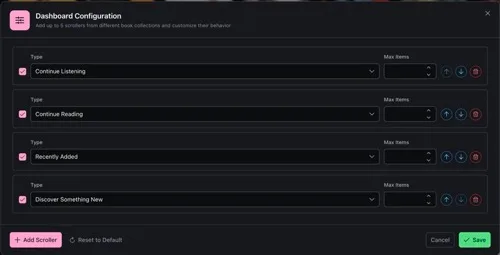
Click the gear icon in the top-right corner of the dashboard to open the configuration dialog.
Scroller Settings
Section titled “Scroller Settings”Each scroller row has the following options:
| Option | Description |
|---|---|
| Checkbox | Enable or disable the scroller without deleting it |
| Type | The data source (see available types below) |
| Max Items | Number of books to display (10 to 20) |
| Reorder arrows | Move the scroller up or down to change its position |
| Delete | Remove the scroller entirely |
Available Scroller Types
Section titled “Available Scroller Types”| Type | Description |
|---|---|
| Continue Reading | Books with active reading progress (ebooks, PDFs, comics) |
| Continue Listening | Audiobooks with active listening progress |
| Recently Added | Books sorted by date added to the library |
| Discover Something New | A random selection refreshed each time you visit |
| Magic Shelf | Books from any Magic Shelf you’ve created |
When you select Magic Shelf as the type, a second dropdown appears to pick which Magic Shelf to use. The scroller title automatically matches the shelf name.
Limits
Section titled “Limits”- Up to 5 scrollers can be added
- At least 1 scroller must remain
- Each scroller shows between 10 and 20 items
Add & Reset
Section titled “Add & Reset”- Add Scroller adds a new row at the bottom (defaults to Recently Added)
- Reset to Default restores the original four-scroller layout
Click Save to apply changes. The configuration is stored per user, so each user can have their own dashboard layout.