Shelves
Shelves let you organize books across libraries by theme, purpose, or preference. A book can belong to multiple shelves, and shelves can contain books from different libraries.
Grimmory comes with a built-in Favorites shelf and an Unshelved section that automatically lists books not assigned to any shelf.
Assigning Books to Shelves
Section titled “Assigning Books to Shelves”From a Single Book
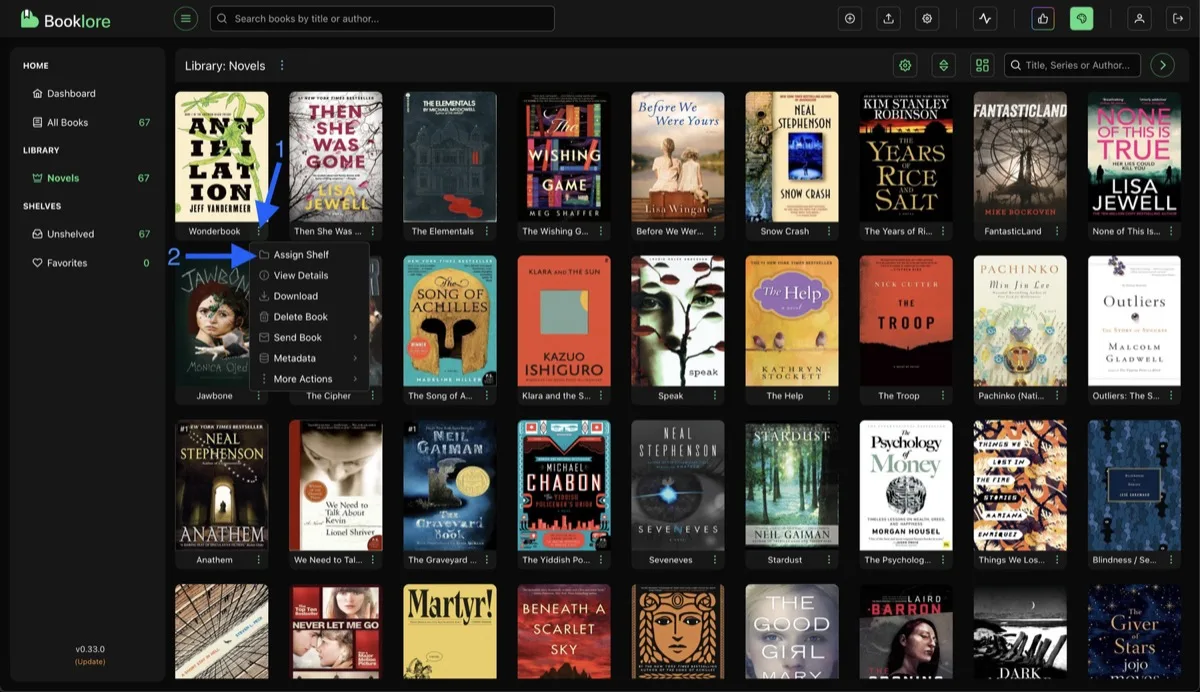
Section titled “From a Single Book”Click the three-dot menu on any book card and select Assign Shelf.
From Multiple Books
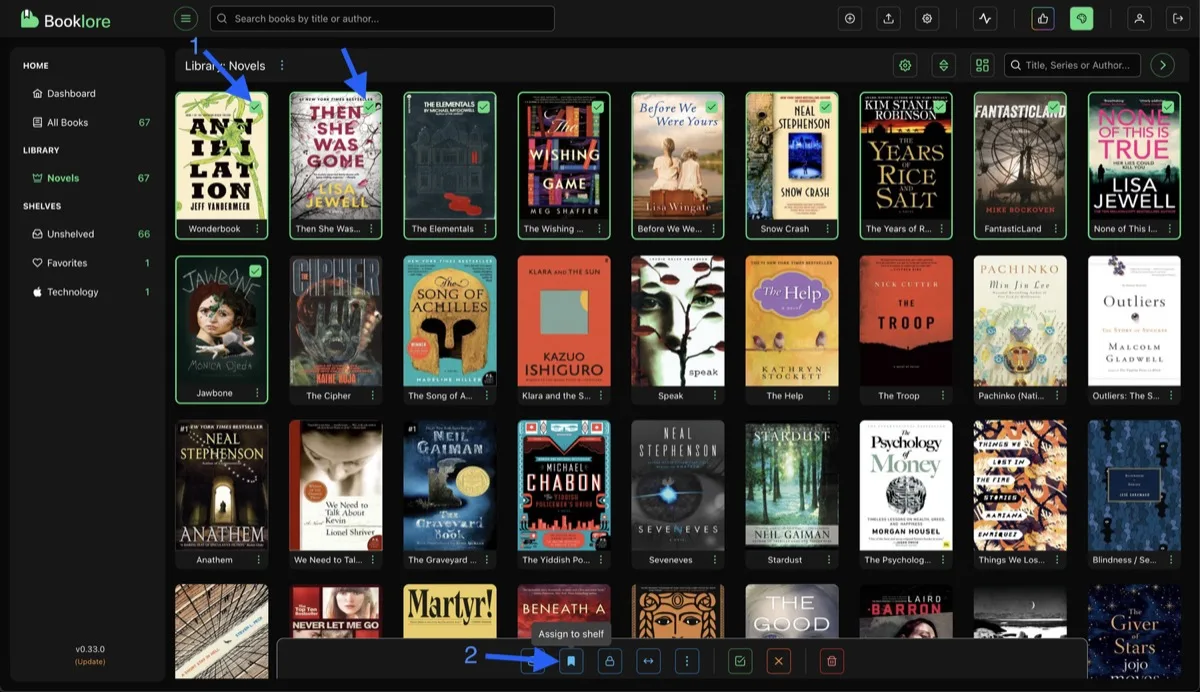
Section titled “From Multiple Books”Hover over a book card and check the checkbox to select it. A bottom action bar appears. Select more books, then click the Assign Shelf button in the action bar.
The Assign Shelf Dialog
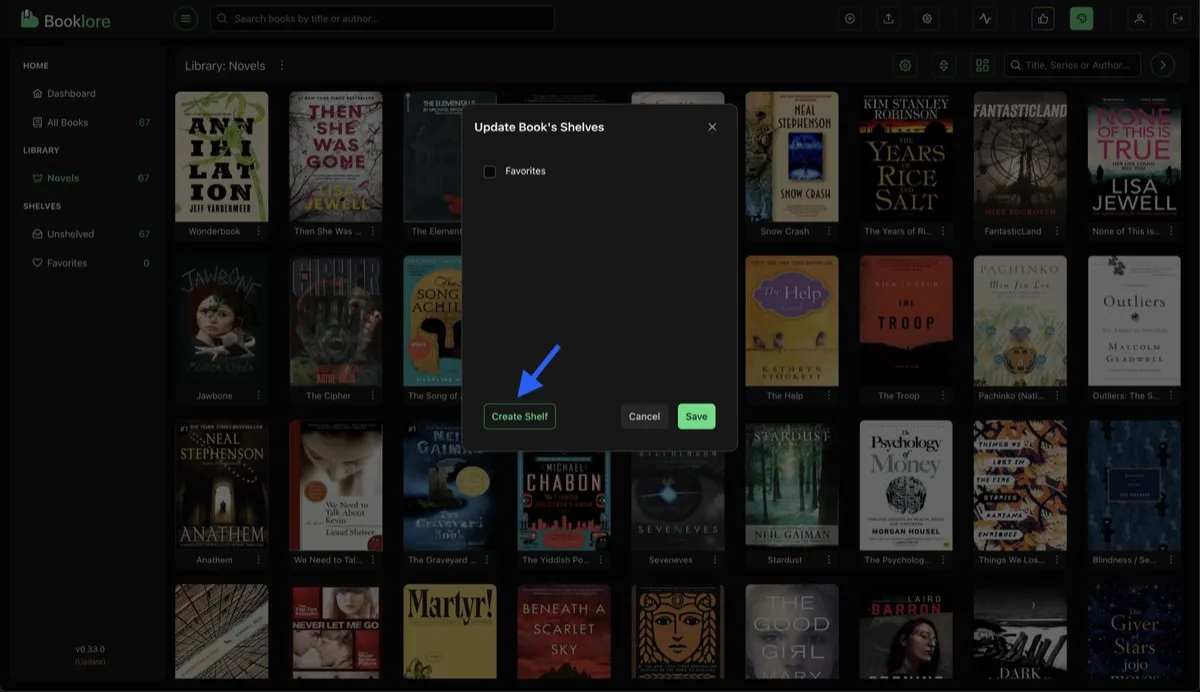
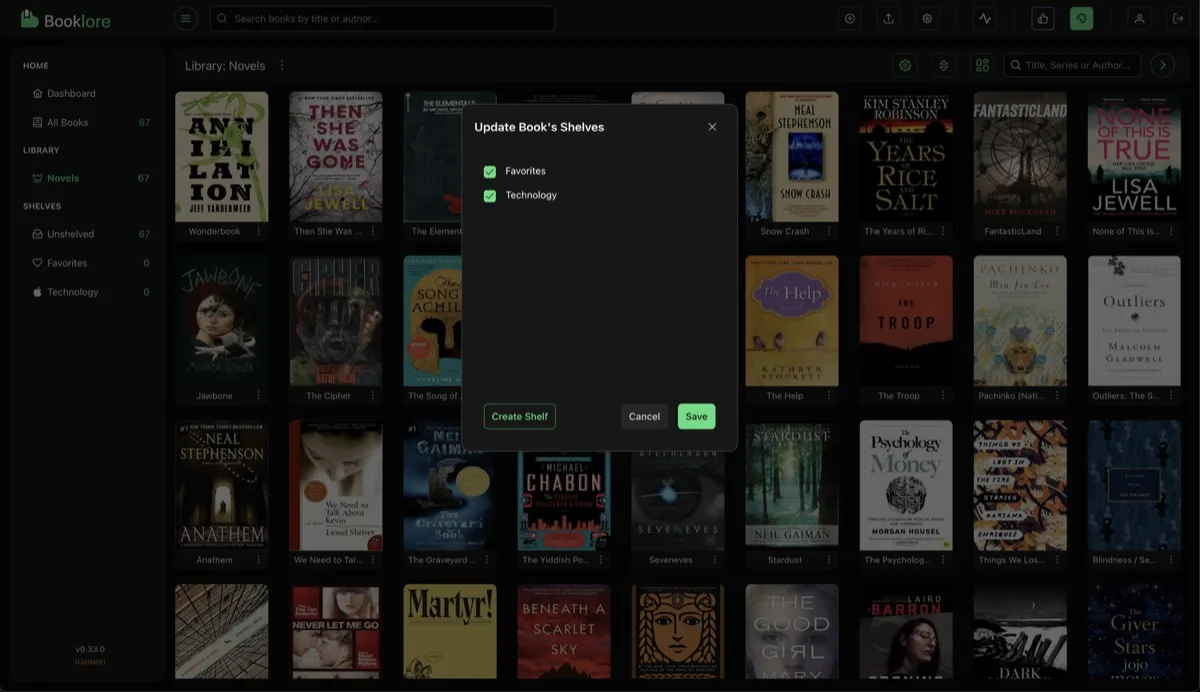
Section titled “The Assign Shelf Dialog”After using either method, the Update Book’s Shelves dialog opens. Check one or more shelves to assign, or click Create Shelf to make a new one.
Creating a Shelf
Section titled “Creating a Shelf”- Click Create Shelf in the assign dialog
- Enter a name and optionally pick an icon
- Click Save
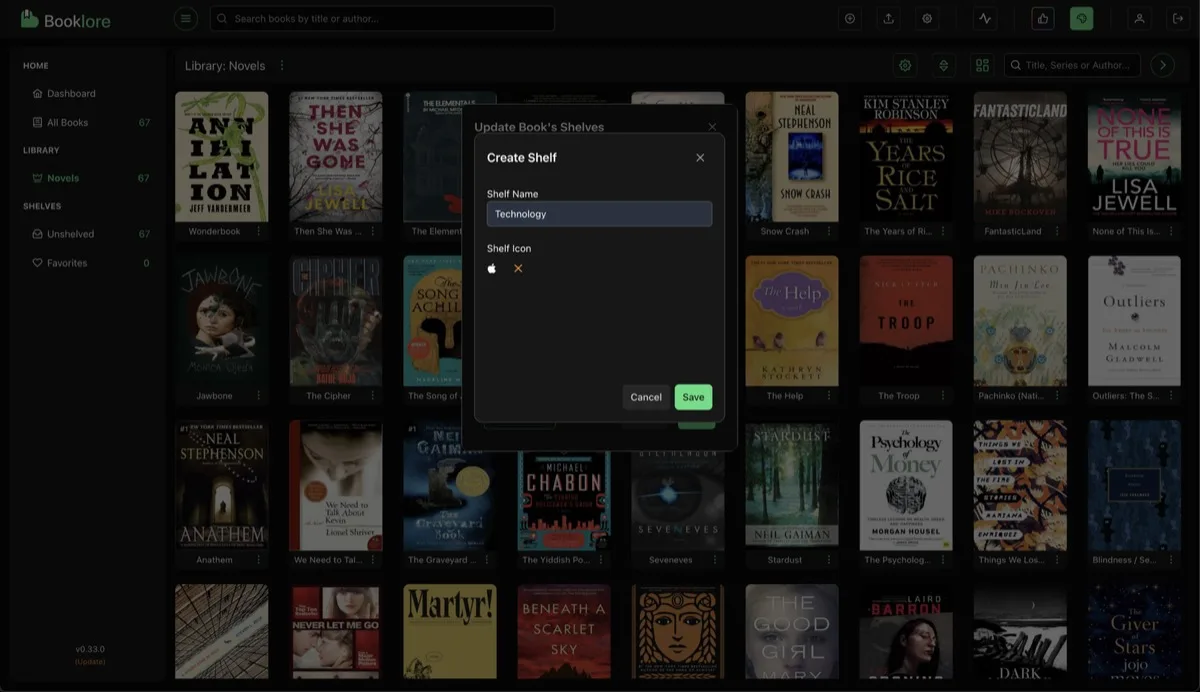
The new shelf is automatically selected in the assign dialog. Click Save to confirm.
Viewing Shelves
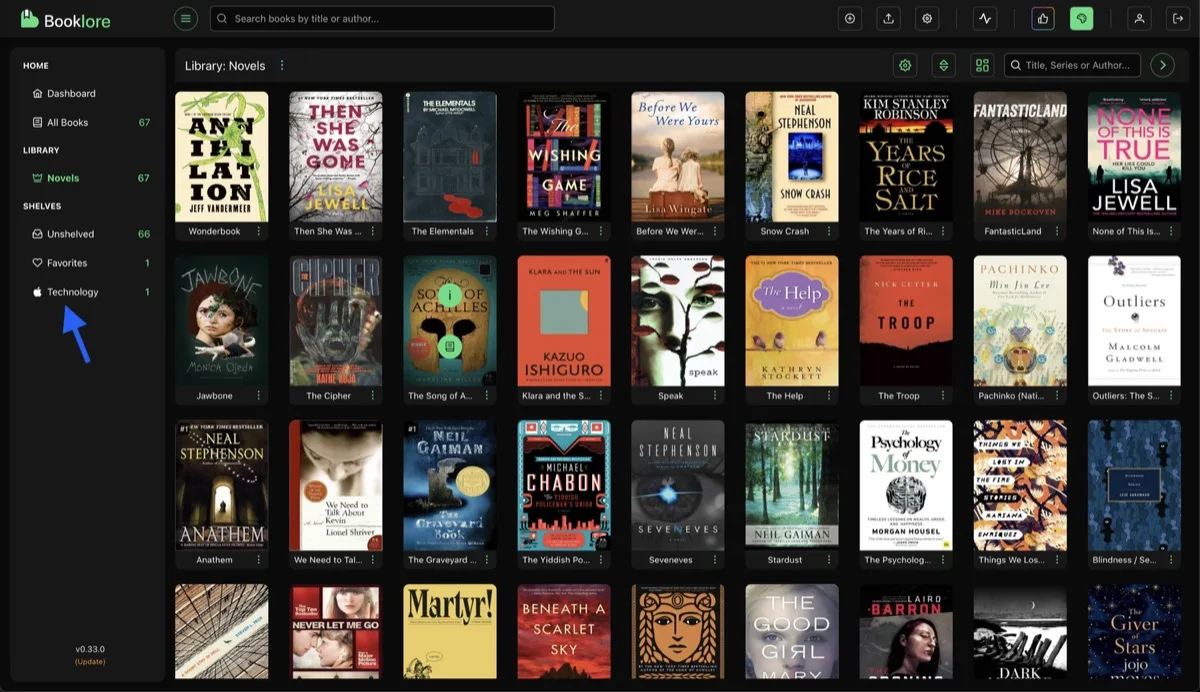
Section titled “Viewing Shelves”All shelves appear in the left sidebar under the Shelves section. Click any shelf to browse its contents.
When viewing a shelf, the bottom action bar includes a Remove from Shelf option for bulk-removing books.