Grid View
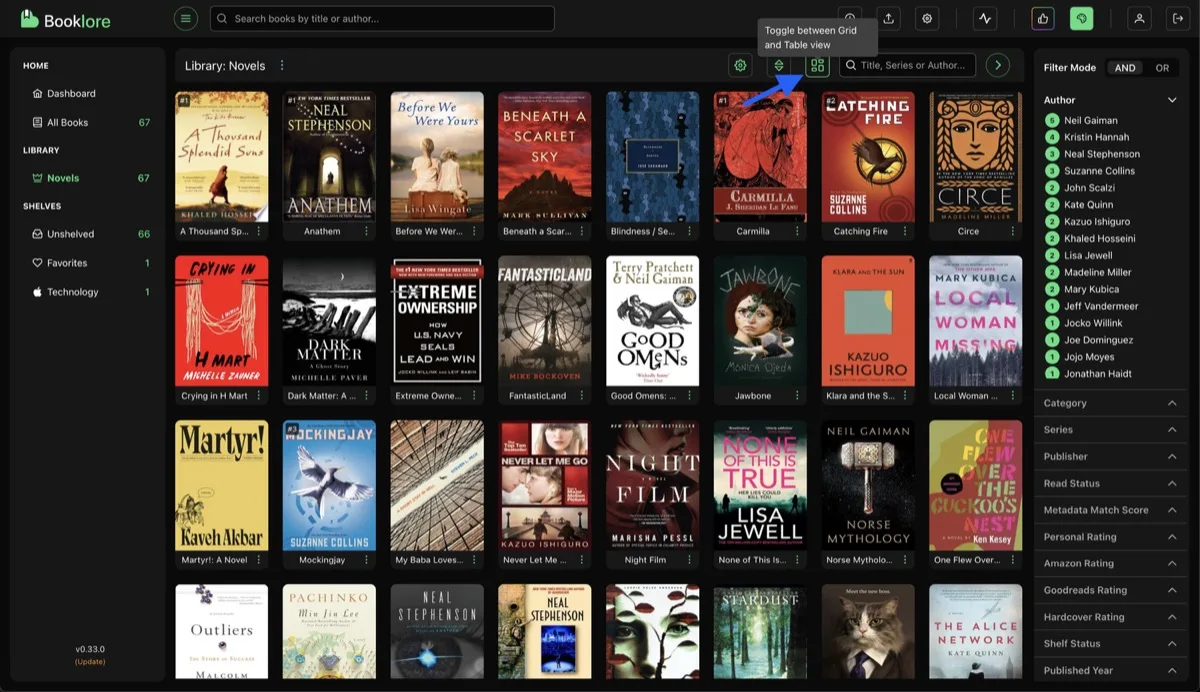
The grid view displays books as cover cards in a responsive layout. Switch between grid and table view using the toggle buttons in the toolbar.
Display Settings
Section titled “Display Settings”Click the gear icon in the toolbar to open the display settings popover.
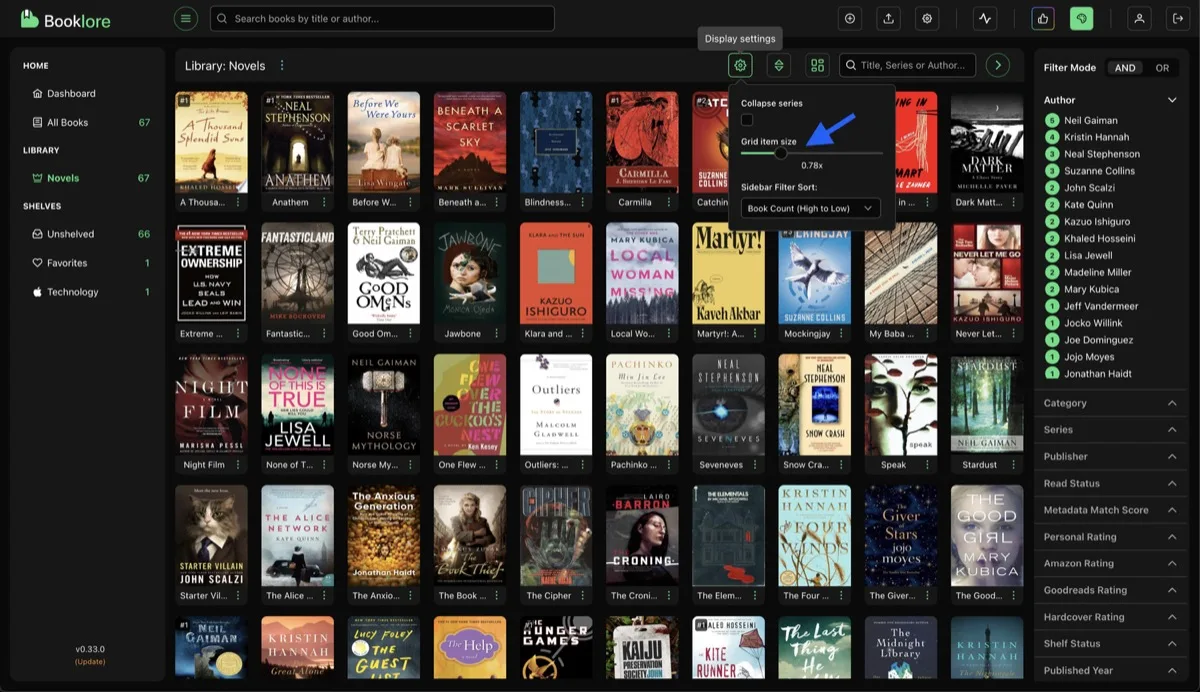
| Setting | Description |
|---|---|
| Collapse Series | When checked, series are collapsed into a single card showing the count. Uncheck to show every book individually. |
| Grid Item Size | Slider to control the size of book cards. Your preference is saved automatically. |
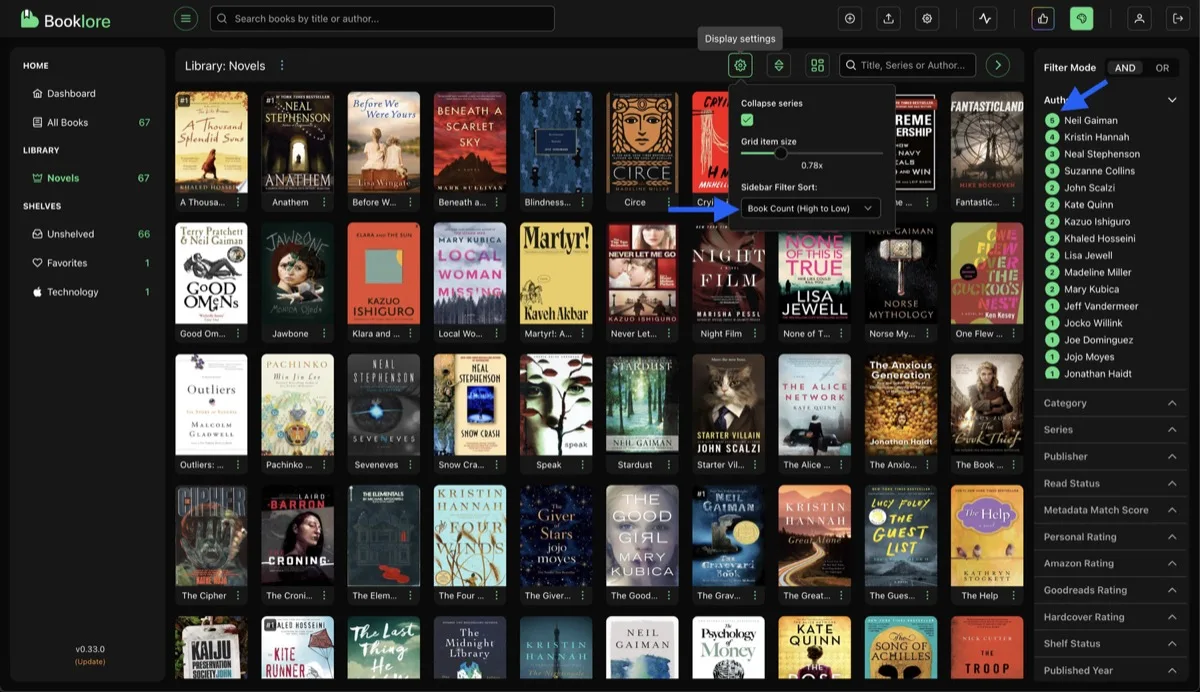
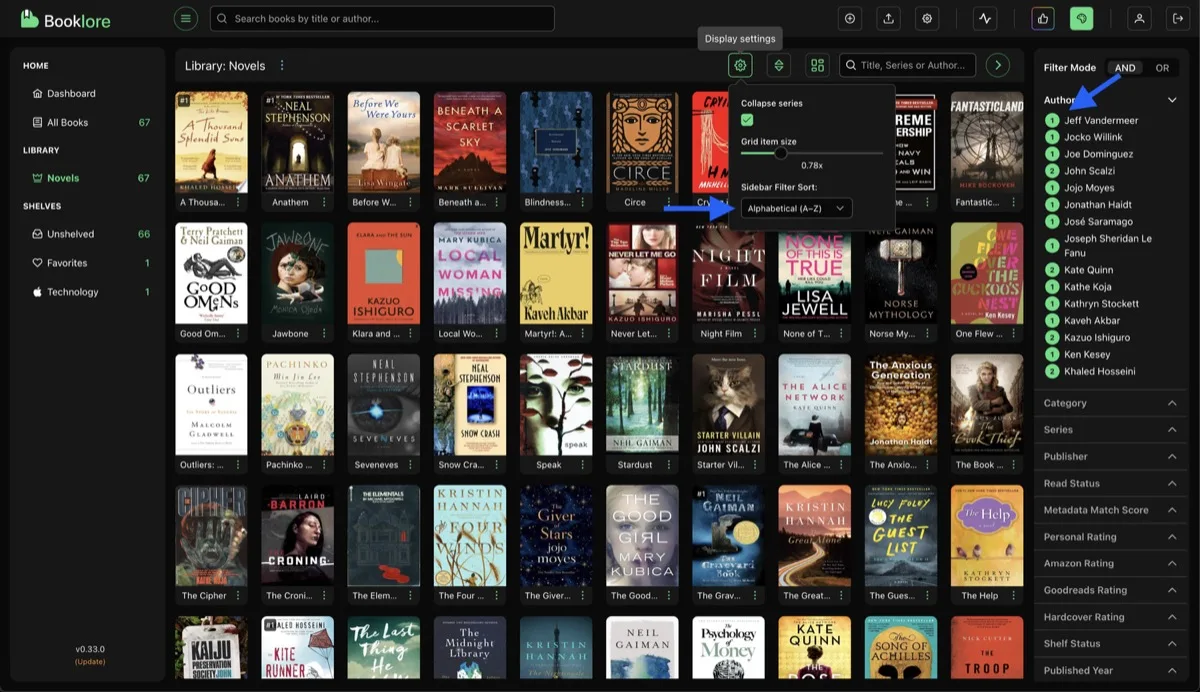
| Sidebar Filter Sort | Controls how items in the sidebar filters are ordered: alphabetically or by book count. |
Collapse Series
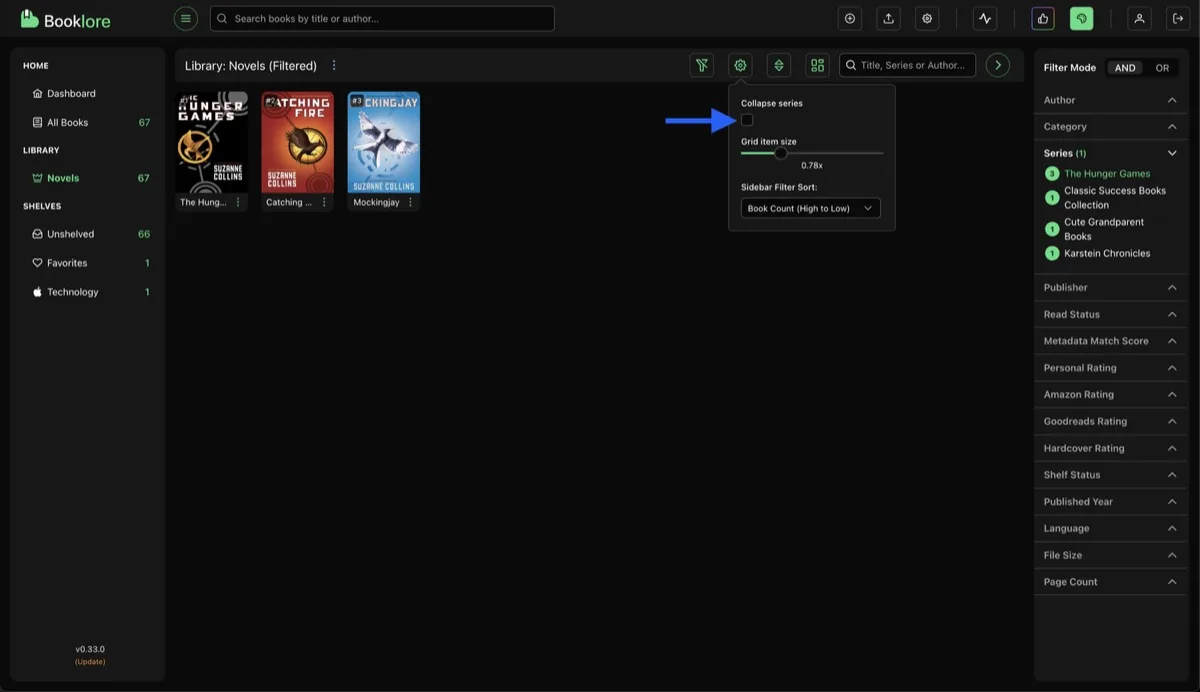
Section titled “Collapse Series”With collapse off, all books in a series show individually:
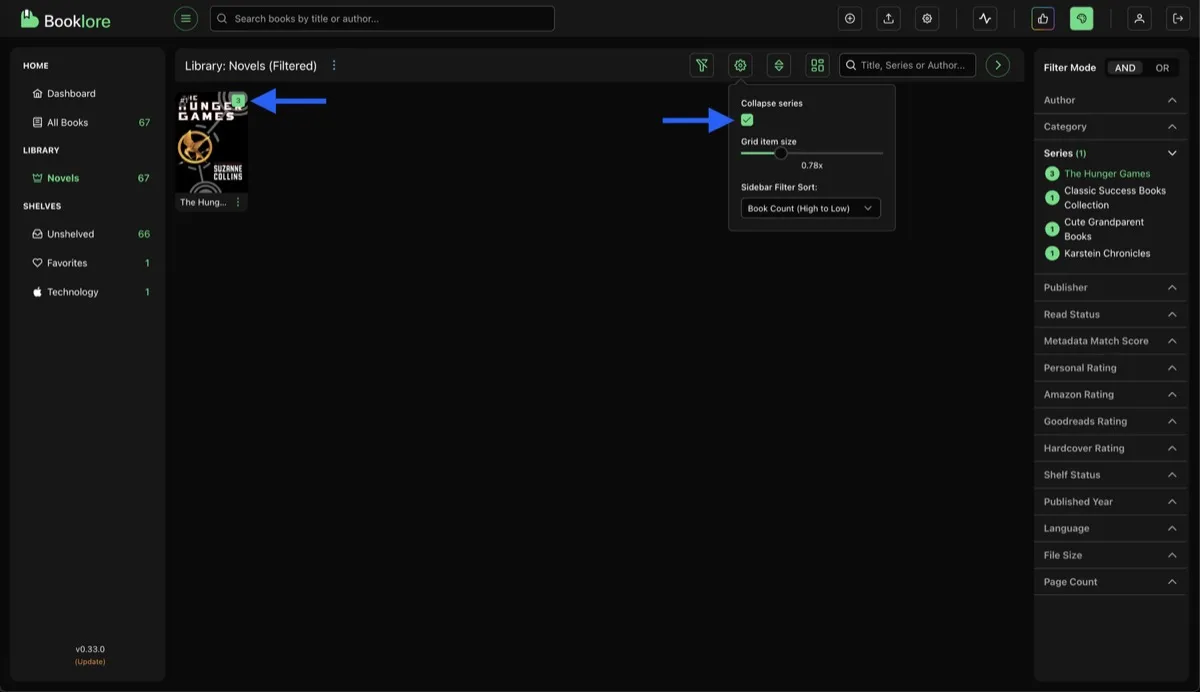
With collapse on, only one card per series is shown with an overlay count:
Sorting
Section titled “Sorting”Click the sort icon in the toolbar to open the sort popover. You can sort by multiple criteria, drag to reorder priority, and toggle ascending/descending for each.
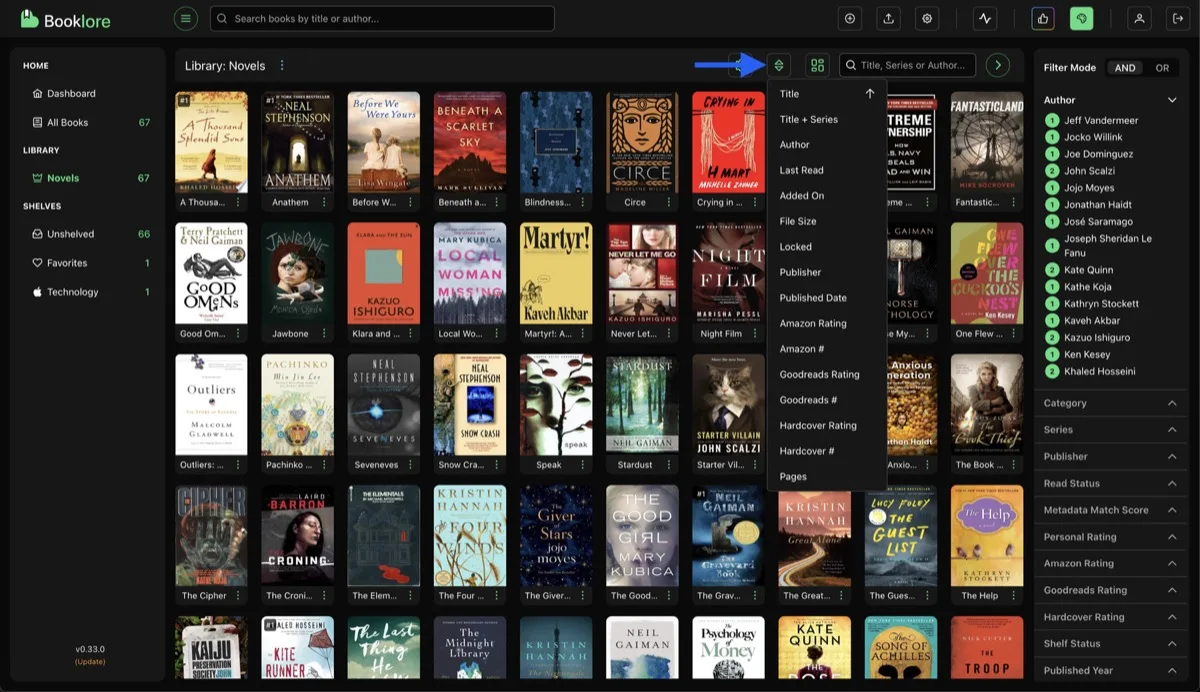
Default sort fields include Title, Author, Series Name, Added On, Last Read, Personal Rating, File Size, Published Date, Pages, and more. Additional fields (Amazon Rating, Goodreads Rating, Narrator, etc.) can be enabled from user settings.
Search
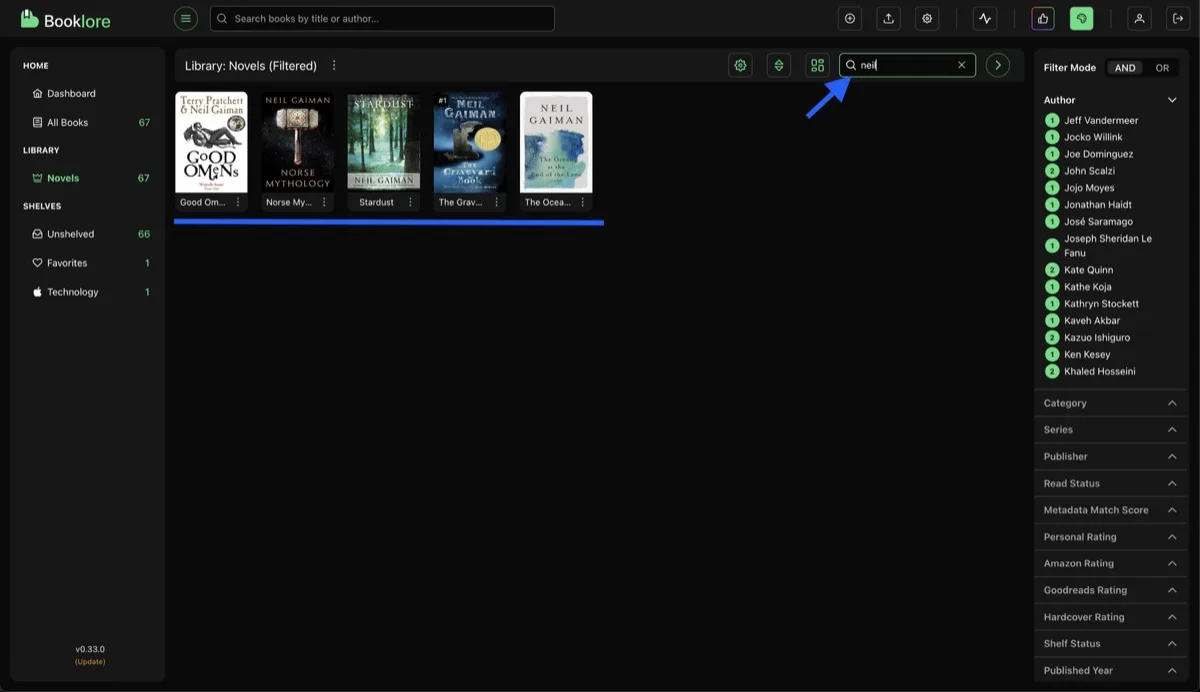
Section titled “Search”The search bar filters books in real time as you type. It matches across titles, series names, and author names.
Sidebar Filters
Section titled “Sidebar Filters”The right sidebar provides filter categories to narrow down your view. Click any value within a category to filter by it.
Available filter categories include Author, Category, Series, Publisher, Read Status, Personal Rating, Published Year, File Size, Language, Page Count, and more. You can customize which filters are visible from user settings.
Filter Mode
Section titled “Filter Mode”The AND / OR toggle at the top of the sidebar controls how multiple filters combine:
| Mode | Behavior |
|---|---|
| AND | Books must match all selected filter values |
| OR | Books match if they fit any selected filter value |
Switching between the sort options changes how items within each filter section are listed:
Book Card Menu
Section titled “Book Card Menu”Right-click or click the three-dot menu on a book card for quick actions:
- Assign Shelf and View Details are always available
- Download, Delete, Send Book, and Metadata appear based on your permissions
- More Actions contains: Set Read Status, Organize File, Reset Progress