Kobo Integration
Kobo sync lets you send books from Grimmory to your Kobo eReader and sync reading activity between both systems. Reading progress sync is bidirectional, and personal ratings set on Kobo sync back to Grimmory. You control what gets synced through a dedicated Kobo shelf: add a book to the shelf and it appears on your device, remove it and it disappears on the next sync. Your shelves and magic shelves carry over as Kobo collections, so the organization you’ve built in Grimmory follows you to the device.
The integration works by redirecting your Kobo’s built-in sync to Grimmory instead of the Kobo Store. Your Kobo still functions normally (store purchases, firmware updates), but it also pulls books from your Grimmory library.
Reverse Proxy Configuration
Section titled “Reverse Proxy Configuration”If Grimmory sits behind a reverse proxy, the proxy needs to forward the right headers for Kobo sync to work. Without these, the Kobo can’t authenticate or sync properly.
proxy_set_header Host $host;proxy_set_header X-Real-IP $remote_addr;proxy_set_header X-Forwarded-For $proxy_add_x_forwarded_for;proxy_set_header X-Forwarded-Host $host;proxy_set_header X-Forwarded-Proto $scheme;proxy_set_header X-Forwarded-Port $server_port;
proxy_buffer_size 128k;proxy_buffers 4 256k;proxy_busy_buffers_size 256k;large_client_header_buffers 8 32k;Step 1: Get Your API Token
Section titled “Step 1: Get Your API Token”Go to Settings > Devices in Grimmory and scroll down to Kobo Sync Settings. Your unique sync token is displayed there. Copy it.
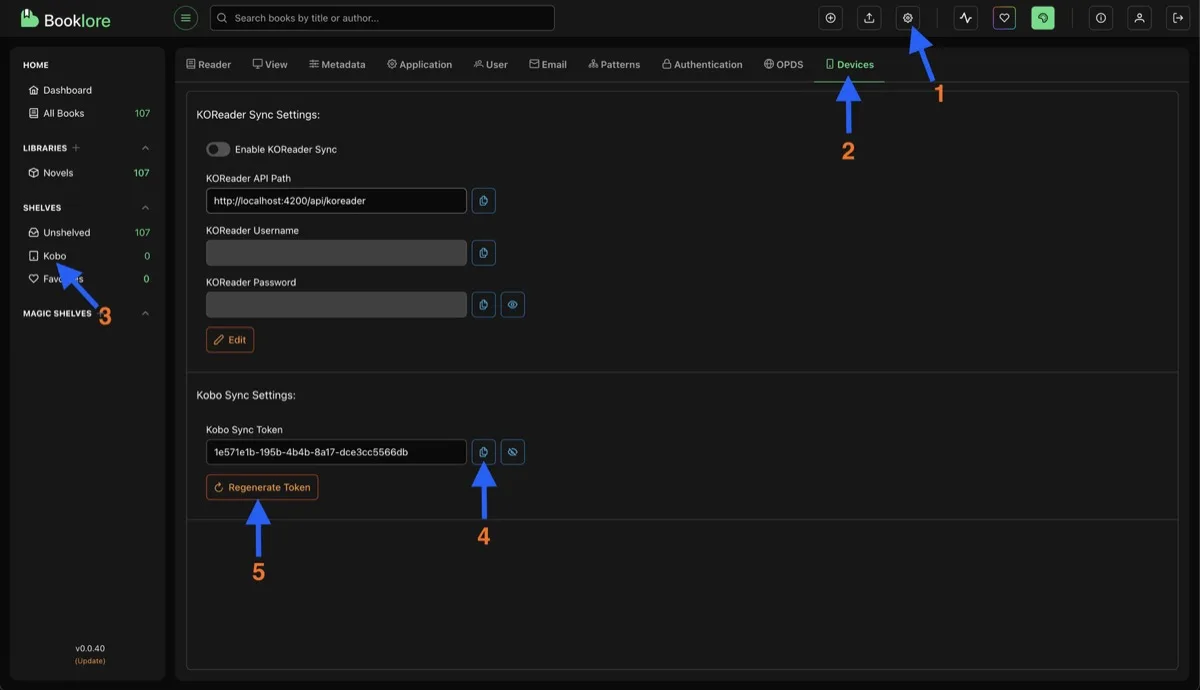
You can regenerate the token at any time with the Regenerate Token button, but you’ll need to update the Kobo’s config file afterward.
Step 2: Configure Your Kobo
Section titled “Step 2: Configure Your Kobo”Connect your Kobo to your computer via USB. You need to edit a configuration file on the device to point it at your Grimmory instance.
- Enable hidden files in your file manager (the folder you need is hidden by default)
- Navigate to the Kobo drive and open the
.kobofolder
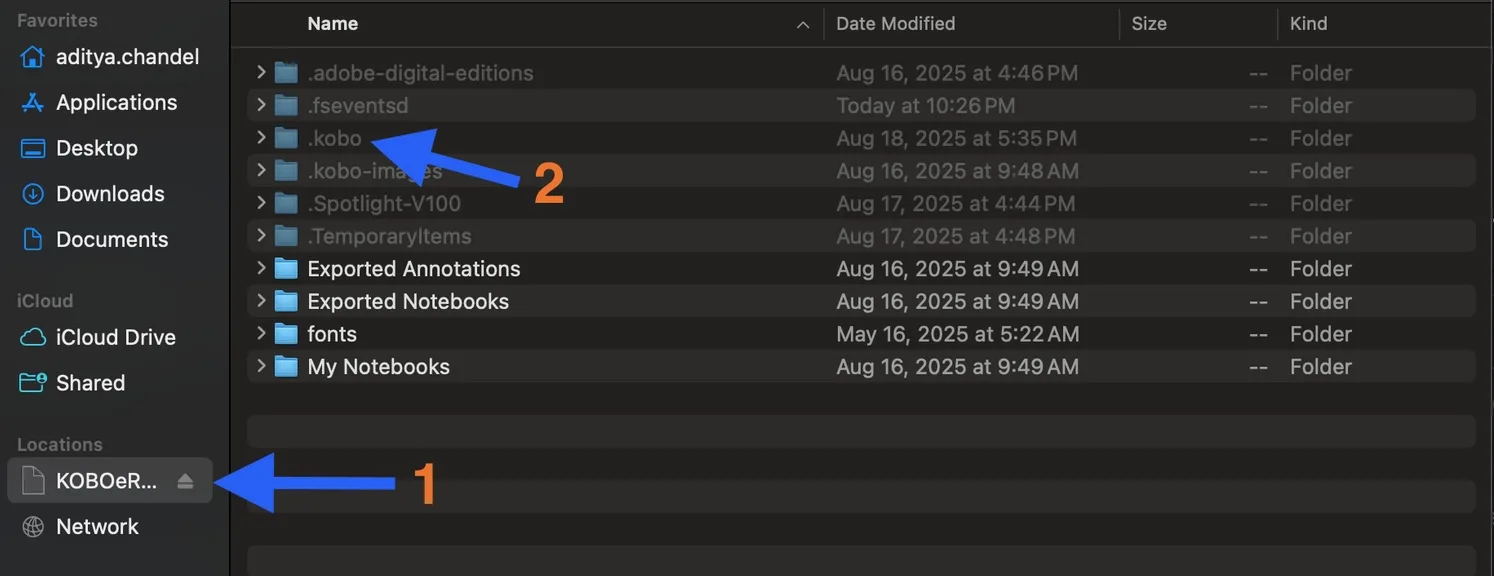
- Open
.kobo/Kobo/Kobo eReader.confin a text editor - Find the
[OneStoreServices]section and look for theapi_endpointline
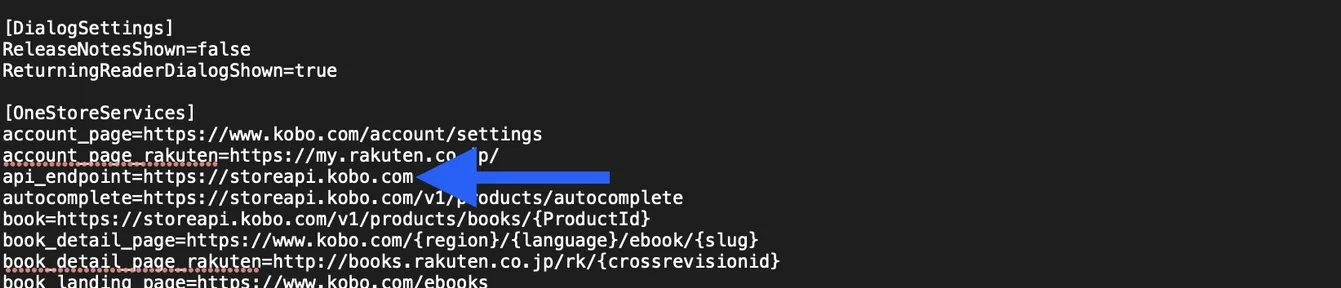
- Replace the
api_endpointvalue with your Grimmory URL followed by/api/kobo/and your token:
Local network (no reverse proxy):
api_endpoint=http://192.168.1.100:6060/api/kobo/your-token-hereRemote server (with reverse proxy and HTTPS):
api_endpoint=https://your-grimmory-domain.com/api/kobo/your-token-here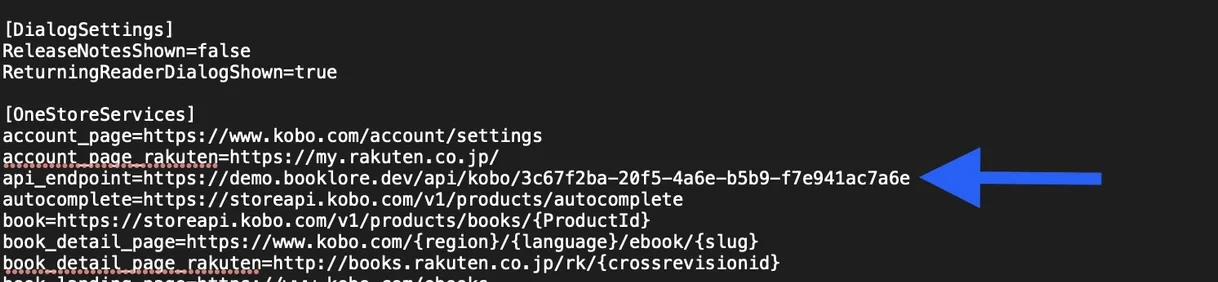
- Save the file and safely eject your Kobo
That’s the only device-side configuration needed. From now on, when your Kobo syncs, it talks to Grimmory.
Step 3: Sync Books
Section titled “Step 3: Sync Books”With the Kobo configured, you control what appears on the device through the Kobo shelf in Grimmory.
- On any book card, click the three-dot menu and select Assign Shelf
- Check the Kobo shelf and save
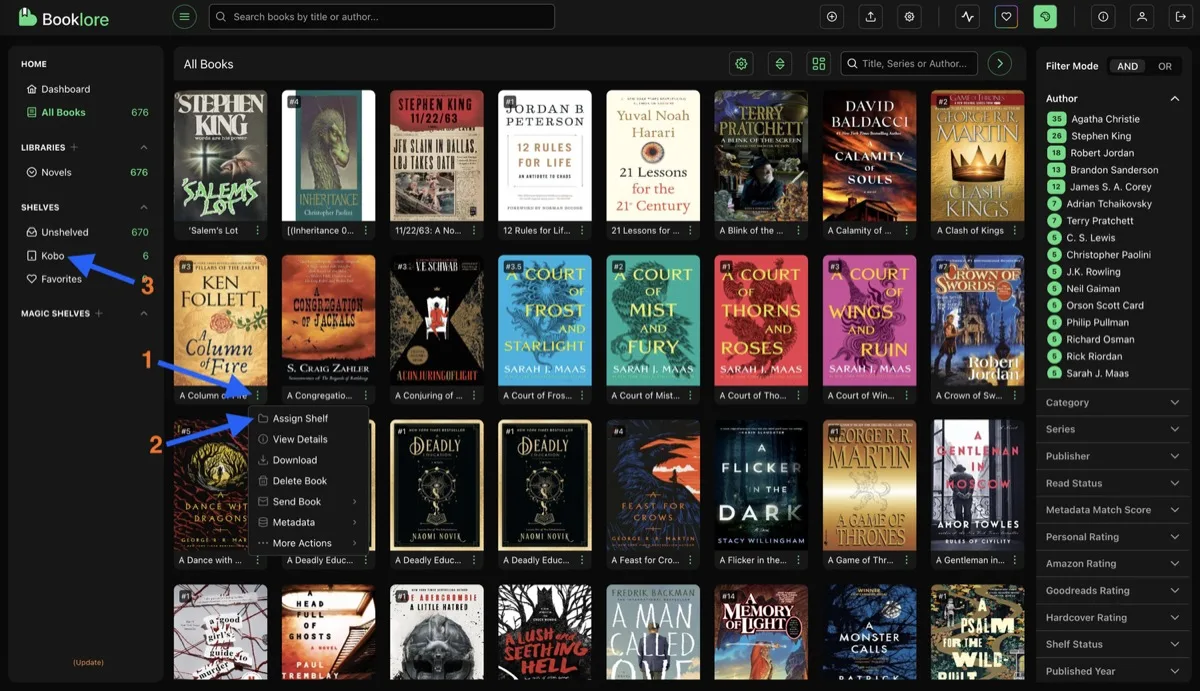
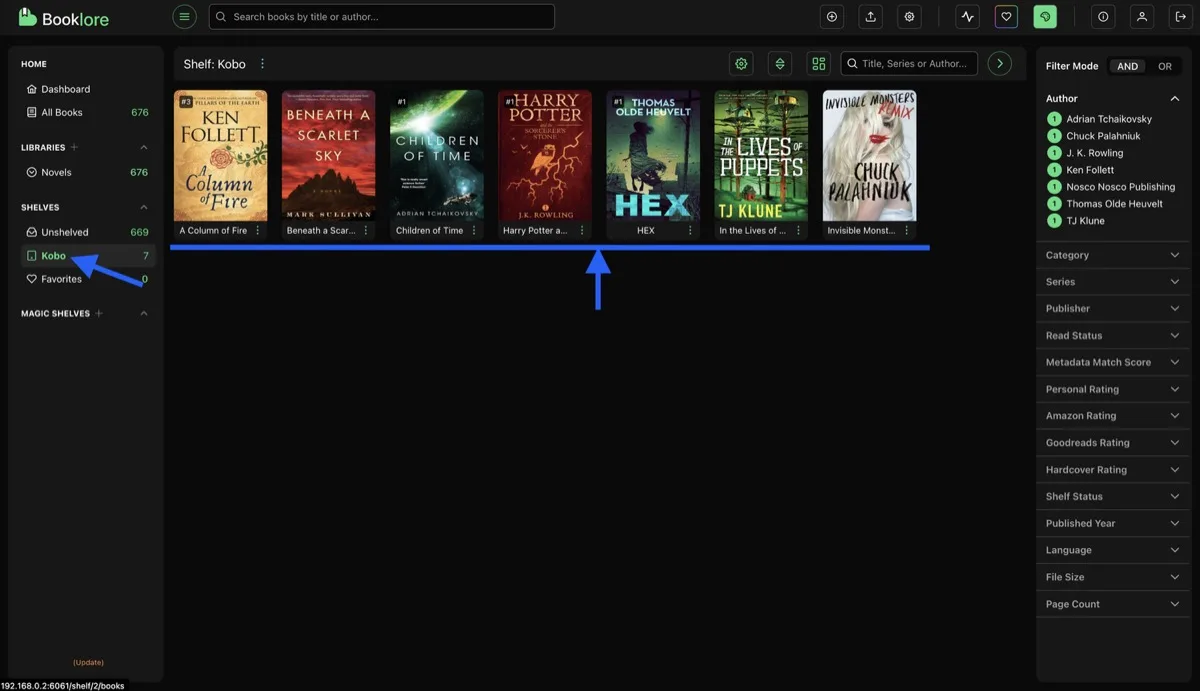
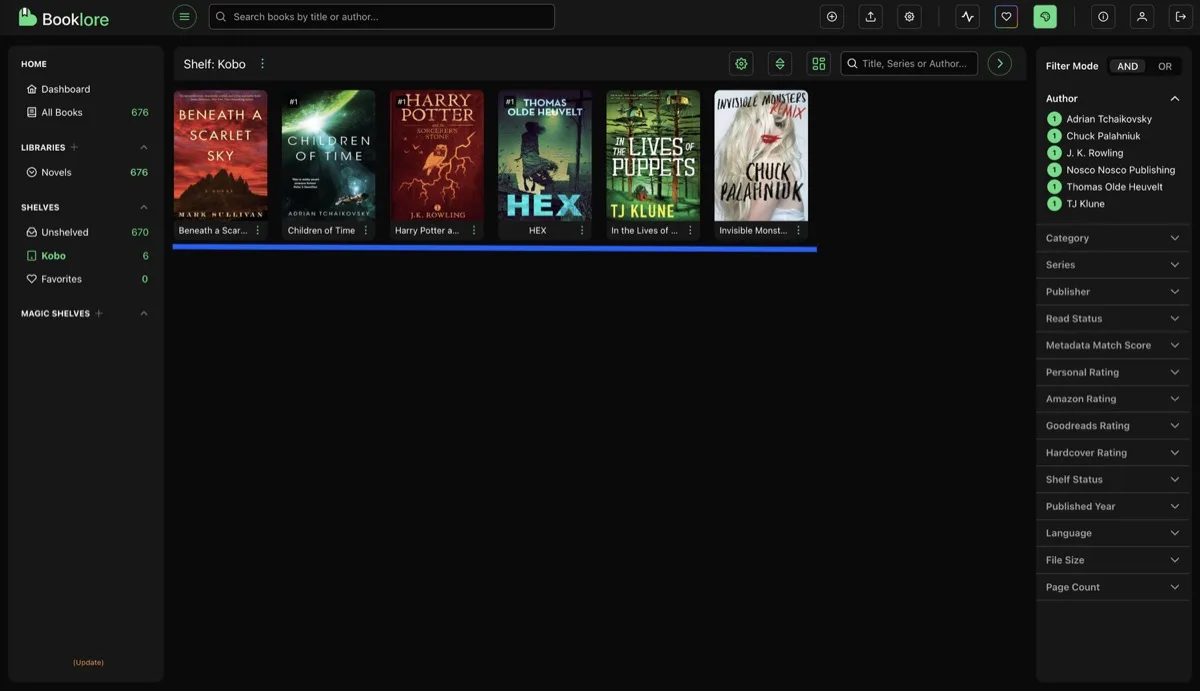
- Repeat for all books you want on the device. The Kobo shelf shows everything queued for sync.
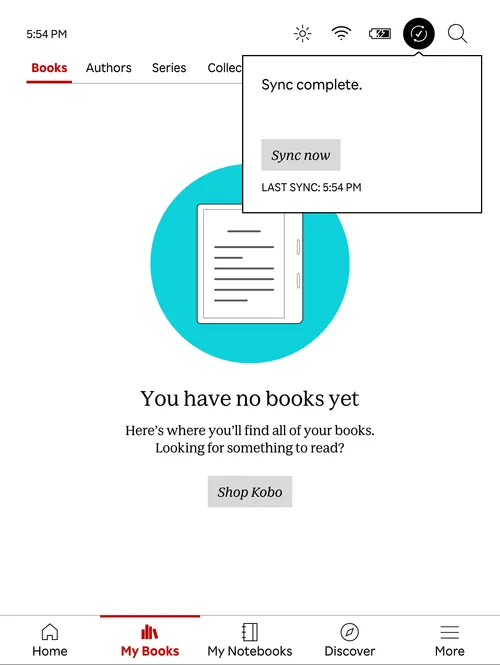
- On your Kobo, go to My Books, tap the sync icon in the top-right corner, and tap Sync now
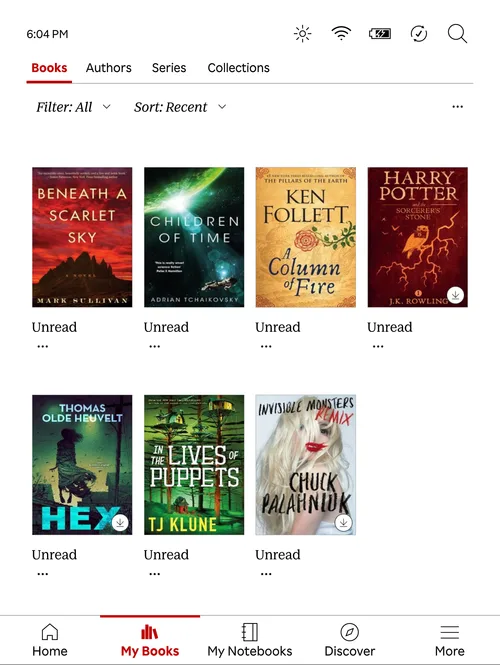
- Your Grimmory books appear on the device, ready to read
Shelves as Collections
Section titled “Shelves as Collections”Your Grimmory shelves (including magic shelves) automatically sync to the Kobo as collections. This means the shelf organization you’ve set up in Grimmory is mirrored on the device.
There’s one important filter: only books that are in your Kobo shelf appear in collections on the device. If your “Favorites” shelf has 10 books but only 4 of those are also in the Kobo shelf, the “Favorites” collection on the Kobo shows just those 4. Shelves with no Kobo-synced books don’t appear as collections at all.
This gives you full control. The Kobo shelf determines which books are on the device, and your other shelves determine how they’re organized.
Removing Books
Section titled “Removing Books”From the Kobo
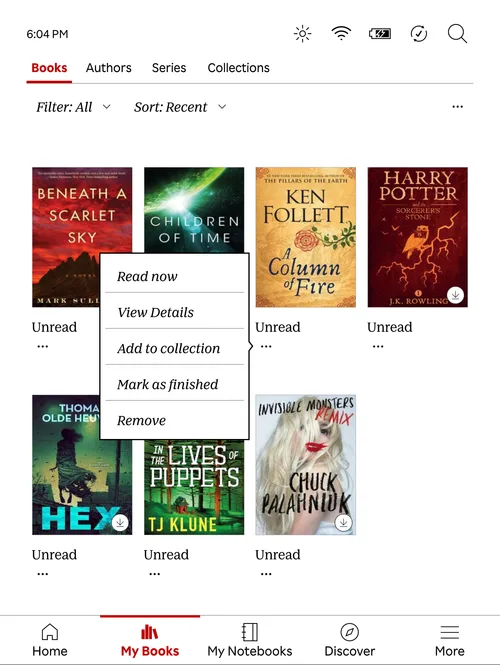
Section titled “From the Kobo”- On the device, tap the three dots on a book cover and select Remove
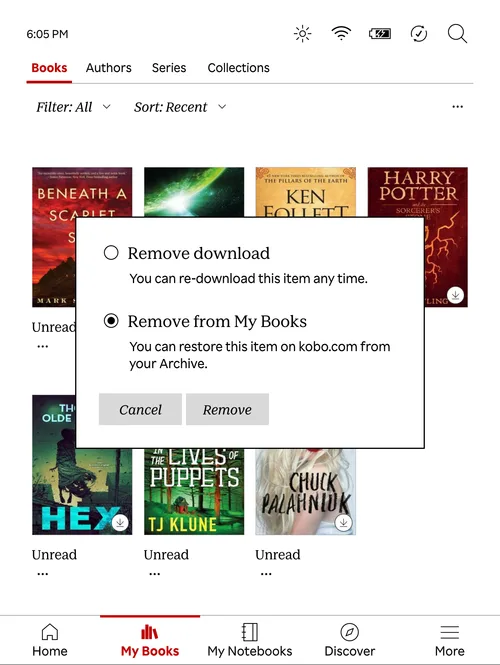
- Select Remove from My Books and tap Remove
- Tap Sync now to push the change back to Grimmory
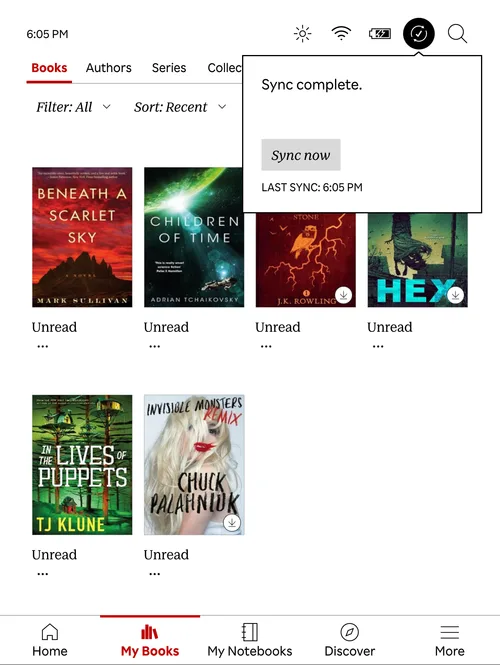
The book is removed from your Kobo shelf in Grimmory but stays in your library. It’s not deleted, just unsynced.
From Grimmory
Section titled “From Grimmory”- Go to your Kobo shelf
- Click the three-dot menu on the book and select Assign Shelf
- Uncheck the Kobo shelf and save
- Sync your Kobo device to apply the change
Reading Progress
Section titled “Reading Progress”When you read a book on your Kobo, the reading progress syncs back to Grimmory. It appears on the book’s detail page as a percentage labeled Kobo Progress with a progress indicator.
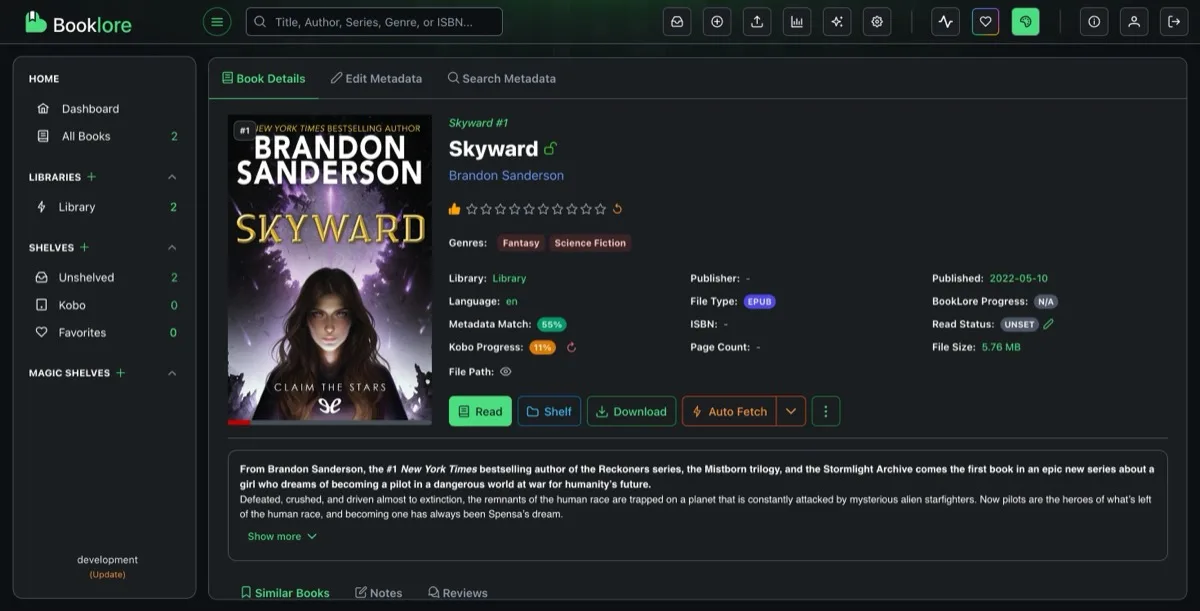
Click the reset icon next to the progress to clear it in Grimmory. This does not affect the reading position on the device.
Personal Ratings
Section titled “Personal Ratings”When you rate a book on your Kobo and run sync, that rating is saved as your Personal Rating in Grimmory.
How it works:
- You set a star rating on the Kobo device for a synced book.
- The Kobo sends that rating to Grimmory when you tap Sync now after setting the rating.
- Grimmory finds the matching book in your library and stores the value as your personal rating.
Note: Kobo ratings are converted by doubling the value (for example, 4 stars on Kobo becomes 8 in Grimmory).
Granting Access to Other Users
Section titled “Granting Access to Other Users”By default, only admins have Kobo Sync enabled. To grant it to other users:
- Go to Settings > Users
- Click the edit icon on the user row
- Enable the Kobo Sync checkbox
- Save
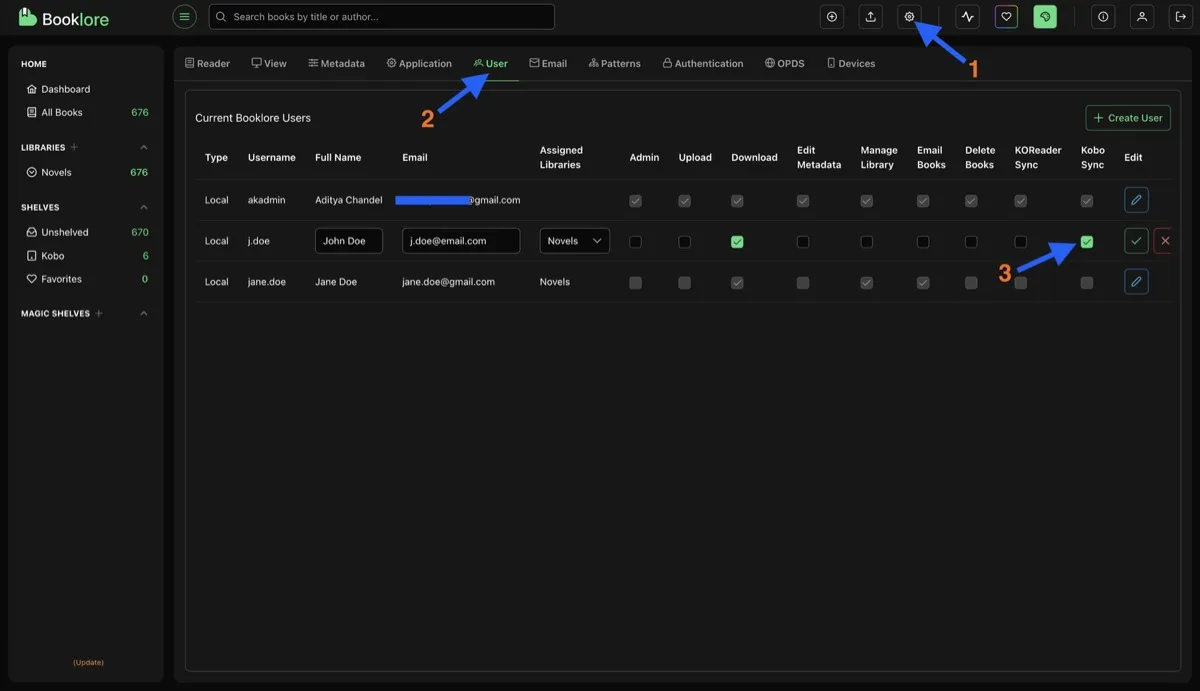
Once granted, the user can find their own sync token in Settings > Devices and follow the same setup steps. Each user gets their own token and their own independent Kobo shelf.
Troubleshooting
Section titled “Troubleshooting”| Problem | What to check |
|---|---|
| Books not appearing on Kobo | Make sure the books are in your Kobo shelf, then trigger a sync on the device. Check that the api_endpoint in the config file is correct and reachable from the Kobo’s network. |
| Sync hangs or fails | If behind a reverse proxy, verify the proxy headers and buffer settings are configured (see above). The Kobo sends large headers that default buffer sizes will reject. |
| ”Store unavailable” on Kobo | The Kobo can’t reach Grimmory. Check the URL in api_endpoint, make sure the port is accessible, and confirm HTTPS is working if you’re using it. |
| Reading progress not syncing back | Progress syncs during the next device sync. Make sure you trigger a sync on the Kobo after reading. |
| PDF books not syncing | PDF is not supported for Kobo sync. Only EPUB (and optionally CBX with conversion) files are synced. |
| Token changed, Kobo won’t sync | If you regenerated your token, update the api_endpoint line in the Kobo’s config file with the new token. |