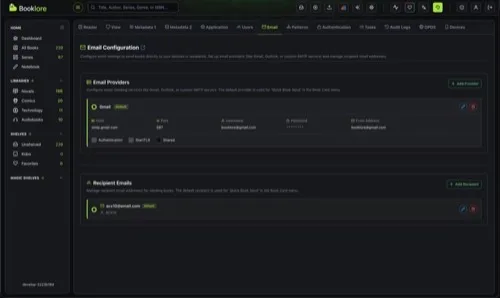
Email Configuration
Configure email settings to send books directly to your devices or recipients. Set up email providers (like Gmail, Outlook, or custom SMTP servers) and manage recipient email addresses.
Navigate to Settings > Email to access this page. Requires the Email Books permission.
Overview
Section titled “Overview”The Email Configuration page has two sections:
- Email Providers: SMTP server configurations used to send books
- Recipient Emails: Email addresses where books are delivered
Once you have a default provider and a default recipient configured, you can send books with a single click using Quick Send from any book card menu.
Email Providers
Section titled “Email Providers”An email provider is an SMTP server configuration that Grimmory uses to send books. You can add multiple providers and set one as the default.
Adding a Provider
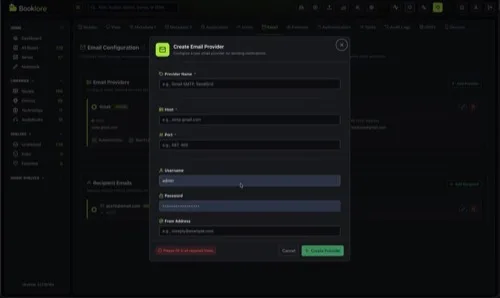
Section titled “Adding a Provider”Click ”+ Add Provider” to open the creation dialog.
| Field | Required | Description |
|---|---|---|
| Provider Name | Yes | A descriptive name (e.g., “Gmail”, “Office SMTP”) |
| Host | Yes | SMTP server hostname (e.g., smtp.gmail.com) |
| Port | Yes | SMTP server port (typically 587 for STARTTLS or 465 for SSL) |
| Username | No | Authentication username (usually your email address) |
| Password | No | Authentication password or app password |
| From Address | No | The sender email address displayed to recipients |
Checkboxes:
| Option | Description |
|---|---|
| Authentication | Enable SMTP authentication with the username and password above |
| StartTLS | Enable STARTTLS encryption (recommended for port 587) |
| Shared | Admin only. Makes this provider available to all users on the instance. |
Default Provider
Section titled “Default Provider”The radio button next to each provider controls which one is the default. The default provider is used for Quick Send. Your first provider is automatically set as the default.
Shared Providers
Section titled “Shared Providers”Admins can mark a provider as Shared to make it available to all users. This is useful for organization-wide SMTP servers so individual users don’t need to configure their own.
- Shared providers appear in every user’s provider list
- Only the admin who created a shared provider can edit or delete it
- Non-admin users see shared providers as read-only
Editing and Deleting
Section titled “Editing and Deleting”Each provider has edit and delete buttons. Click edit to modify settings inline, or delete to remove the provider. If you delete the default provider, another provider is automatically assigned as the new default.
Recipient Emails
Section titled “Recipient Emails”Recipients are the email addresses where books are sent. Each user manages their own private list of recipients.
Adding a Recipient
Section titled “Adding a Recipient”Click ”+ Add Recipient” to add a new recipient.
| Field | Required | Description |
|---|---|---|
| Yes | The recipient’s email address | |
| Name | Yes | A label for the recipient (e.g., “My Kindle”, “John’s iPad”) |
Default Recipient
Section titled “Default Recipient”The radio button next to each recipient controls which one is the default. The default recipient is used for Quick Send. Your first recipient is automatically set as the default.
Sending Books
Section titled “Sending Books”Once your email provider and recipients are configured, you can send books from any book card menu.
Quick Send
Section titled “Quick Send”Select Email Book > Quick Send from the book card menu. The book is sent immediately using your default provider and default recipient with no further interaction.
Custom Send
Section titled “Custom Send”Select Email Book > Custom Send from the book card menu to open a dialog where you can:
- Choose a provider from your available providers (personal + shared)
- Choose a recipient from your recipient list
- Choose a file format if the book has multiple formats (e.g., EPUB and PDF)
The dialog shows the file size for each format and warns you if a file exceeds 25 MB.
Gmail Setup
Section titled “Gmail Setup”Gmail is the most common provider. Here’s how to set it up:
Step 1: Generate an App Password
Section titled “Step 1: Generate an App Password”- Go to Google Account Security Settings
- Ensure 2-Step Verification is enabled (required for app passwords)
- Navigate to App Passwords
- Select Mail as the app type, choose Other, enter “Grimmory”
- Click Generate and copy the 16-character password
Step 2: Add Gmail as a Provider
Section titled “Step 2: Add Gmail as a Provider”Use these settings when creating the provider:
| Field | Value |
|---|---|
| Provider Name | Gmail |
| Host | smtp.gmail.com |
| Port | 587 |
| Username | Your Gmail address |
| Password | The 16-character app password |
| From Address | Your Gmail address |
| Authentication | Checked |
| StartTLS | Checked |
Other Common Providers
Section titled “Other Common Providers”| Provider | Host | Port | Auth | StartTLS |
|---|---|---|---|---|
| Gmail | smtp.gmail.com | 587 | Yes | Yes |
| Outlook/Hotmail | smtp-mail.outlook.com | 587 | Yes | Yes |
| Yahoo | smtp.mail.yahoo.com | 587 | Yes | Yes |
| Custom SMTP | Your server’s hostname | Per your server | Per your server | Per your server |
Troubleshooting
Section titled “Troubleshooting”Authentication Failed
Section titled “Authentication Failed”- Verify you’re using an app password, not your regular account password
- Confirm 2-Factor Authentication is enabled (required by Gmail for app passwords)
- Double-check the username and password fields
Connection Timeout
Section titled “Connection Timeout”- Confirm the host and port are correct
- Ensure StartTLS is enabled for port 587
- Check that your network or Docker container allows outbound SMTP connections
Books Not Arriving
Section titled “Books Not Arriving”- Check the recipient’s spam/junk folder
- Verify the recipient email address is correct
- For Kindle users, ensure your sending address is added to the Approved Personal Document Email List in your Amazon account
Cannot See Email Settings
Section titled “Cannot See Email Settings”- Verify you have the Email Books permission. Contact your administrator if needed.
- Email providers and recipients are personal to each user. Other users cannot see or use your private configurations.
- All email provider and recipient changes are recorded in the Audit Log.
- The connection type is auto-detected: port 465 uses SSL, port 587 with StartTLS uses STARTTLS, otherwise plain SMTP.
- Email sending happens asynchronously. You’ll see a toast notification when the send completes or fails.
- Supported formats for sending: EPUB, PDF, CBX (CBZ/CBR/CB7), MOBI, AZW3, FB2, and Audiobook (M4B/M4A/MP3).