Amazon Cookie Setup
Amazon metadata works out of the box, but if you run into 503 errors or rate limiting, providing a browser session cookie gives Grimmory a way to look like a regular logged-in user. The cookie is optional but recommended for the most reliable results.
Get the Cookie from Your Browser
Section titled “Get the Cookie from Your Browser”- Open your regional Amazon site (e.g., amazon.com, amazon.co.uk) and sign in
- Open your browser’s developer tools (
F12, orCmd+Option+Ion Mac) - Switch to the Network tab
- Refresh the page so new requests appear
- Select Fetch/XHR from the top filters
- Click the first request in the list (the main page load)
- In the Headers panel, scroll down to Request Headers and find the
Cookiefield - Copy the entire cookie value
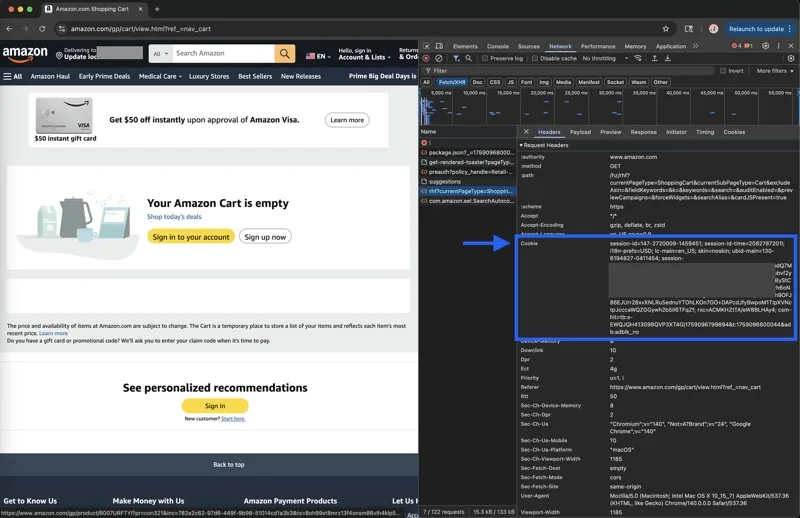
The cookie is a long string containing multiple key-value pairs separated by semicolons. Copy the whole thing.
Paste It into Grimmory
Section titled “Paste It into Grimmory”- Open Settings > Metadata 1
- Under Amazon, select your Region from the dropdown
- Paste the cookie string into the Cookie field
- Click Save
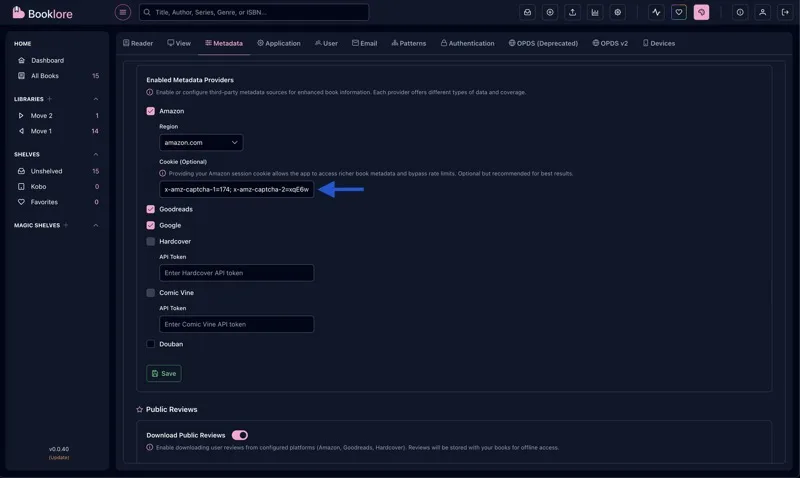
That’s it. Grimmory will include the cookie when fetching metadata from Amazon, which gives access to richer results and avoids rate limits.
Troubleshooting
Section titled “Troubleshooting”| Problem | What to check |
|---|---|
| Still getting 503 errors | The cookie may have expired. Repeat the process to grab a fresh one. Make sure you’re signed in to Amazon before capturing. |
| Metadata missing or sparse | Make sure the Region dropdown matches the Amazon site you got the cookie from. A cookie from amazon.co.uk won’t work for amazon.com. |
| Different regions needed | If your library has books from multiple Amazon regions, you’ll need to update the cookie and region when switching. Grimmory stores one cookie at a time. |
| Cookie seems too short | Make sure you copied the full value from the Cookie request header, not a single Set-Cookie response header. The request cookie is one long combined string. |