Setup First Library
A library is a collection of book folders that Grimmory monitors and indexes. Each library has its own settings for metadata handling, format priority, and file watching.
Creating a Library
Section titled “Creating a Library”Click “Add a Library” from the dashboard, or click the + button next to Libraries in the sidebar.
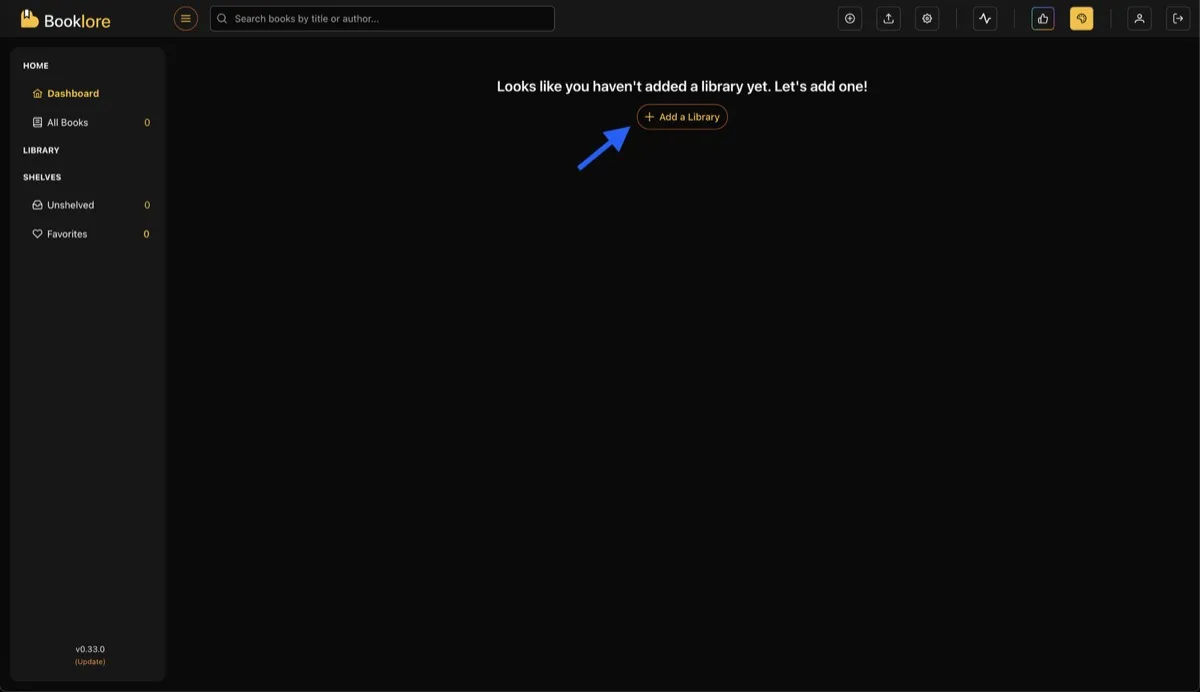
This opens the library creation dialog.
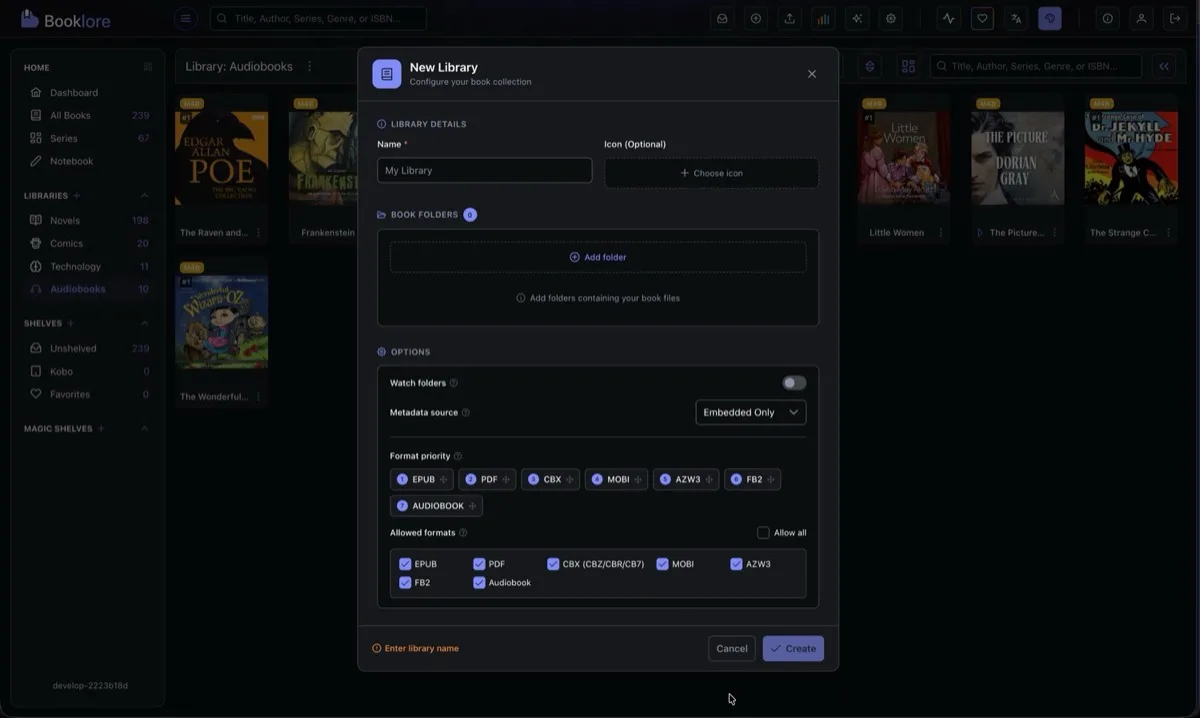
Library Details
Section titled “Library Details”| Field | Required | Description |
|---|---|---|
| Name | Yes | A descriptive name (e.g., “Novels”, “Comics”, “Audiobooks”) |
| Icon | No | Pick from the icon set or upload a custom SVG |
Book Folders
Section titled “Book Folders”Click “Add folder” to open the directory picker and select folders containing your book files. You can add multiple folders to a single library, but a folder can only belong to one library.
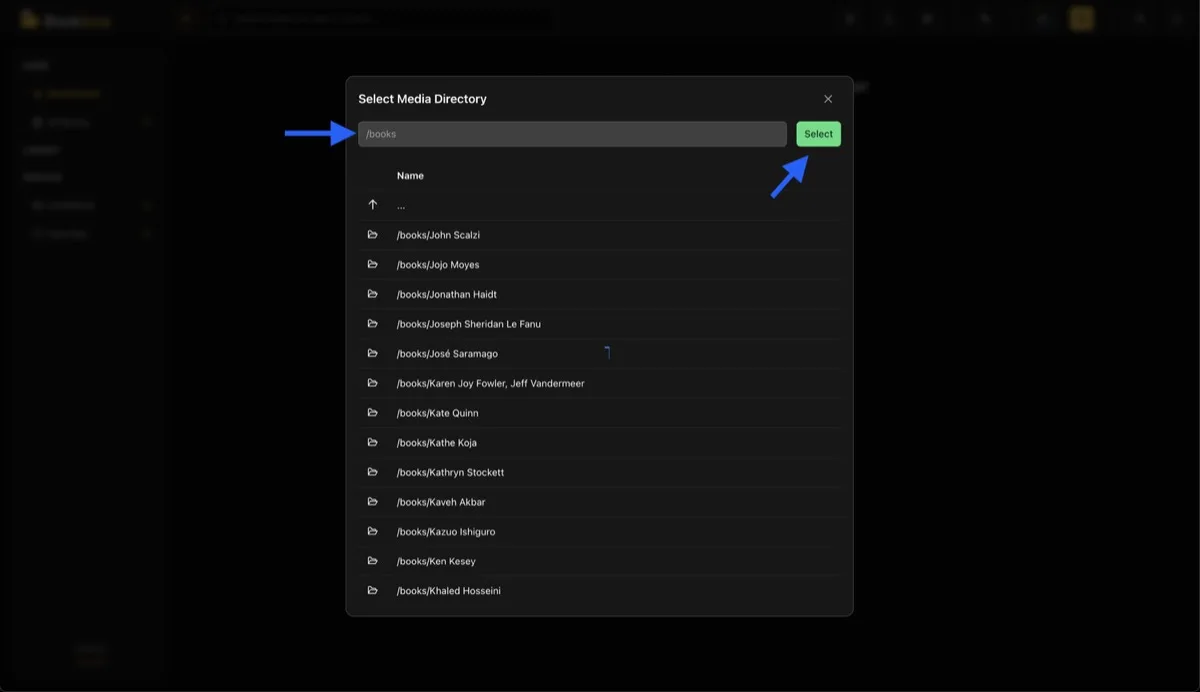
Remove a folder by clicking the button next to it.
Options
Section titled “Options”Watch Folders toggles automatic detection of new, changed, or deleted books. Recommended for active collections.
Metadata Source controls where Grimmory reads metadata during scans:
| Option | Behavior |
|---|---|
| Embedded Only | Reads metadata from inside the book file (default) |
| Sidecar Only | Reads from sidecar files (e.g., OPF files next to the book) |
| Prefer Sidecar | Uses sidecar if available, falls back to embedded |
| Prefer Embedded | Uses embedded if available, falls back to sidecar |
| None | Skips metadata extraction during scan |
Format Priority sets which file format is treated as primary when a book exists in multiple formats. Drag the chips to reorder.
Allowed Formats restricts which file types this library scans. All formats are allowed by default: EPUB, PDF, CBX (CBZ/CBR/CB7), MOBI, AZW3, FB2, and Audiobook (M4B/M4A/MP3).
After Creation
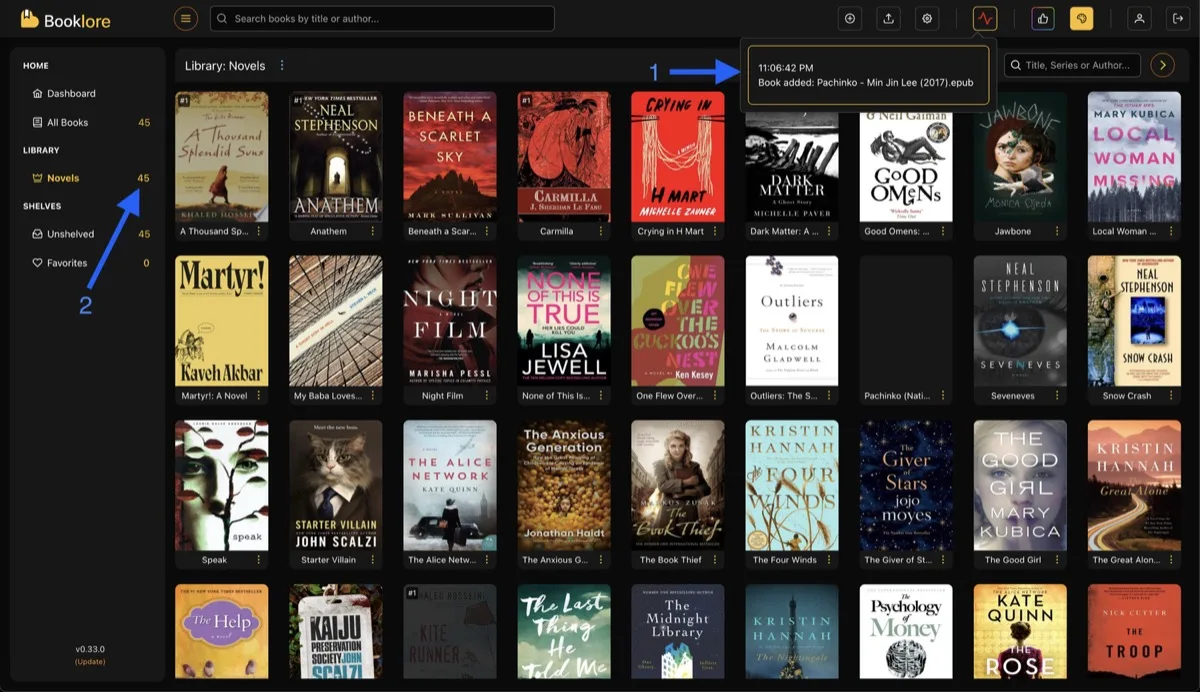
Section titled “After Creation”Click “Create” to save. Grimmory immediately scans the selected folders, extracts metadata, generates cover thumbnails, and indexes everything. Processing runs in the background, so you can navigate freely.
Next Steps
Section titled “Next Steps”- Set up metadata providers for richer book information
- Learn about library management for rescanning, metadata refresh, and deletion
- Read about organization modes for optimal file organization